Managing Atlassian users at scale across multiple Atlassian sites becomes effortless when you combine advanced filters with bulk operations in User Manager’s User Browser – allowing you to precisely target specific user groups and act on them in a single step. This approach eliminates the manual, error-prone process of reviewing thousands of accounts individually and replaces it with a repeatable, efficient workflow that saves significant time for enterprise administrators.
In our latest episode of the User Manager series, we walk through exactly how to stack filters, narrow your user base across all connected sites, save those filters for future use, and execute combined bulk actions with full confirmation of results.
Watch our full walkthrough in the video below:
Why Scale Demands a Different Approach
When you’re managing one user or a small handful, manual review works fine. But when you’re running multiple sites with hundreds or even thousands of Atlassian users, that approach falls apart quickly. The User Browser in User Manager isn’t just a simple list – it’s a precision tool designed for exactly this challenge. Its filtering system lets you slice your entire user base down to the exact group you care about, across every connected site simultaneously. Once you’ve identified the right Atlassian users, bulk operations let you act on that entire selection in a single step.
The core principle is straightforward: find precisely, act all at once. That’s the entire game when operating at scale, and it’s what separates efficient administration from hours of tedious manual work.
A Real-World Scenario: Cleaning Up External Contractors
To understand the power of this workflow, consider a practical example. An enterprise administrator needs to clean up external contractor accounts. They don’t want to affect all Atlassian users – just the ones from a specific email domain who have been inactive for over 30 days and who aren’t members of a protected group. Trying to identify those Atlassian users by eye across thousands of accounts would be virtually impossible and extremely error-prone.
With User Manager’s advanced filters, this becomes a 30-second job. You narrow the list to exactly those people using stacked filter conditions, then handle them all in one bulk action. No scrolling through endless lists, no risk of accidentally modifying the wrong accounts.
Understanding the Three-Part Framework
The system works through three interconnected components that make large-scale user management sustainable over time:
- Filters narrow your set – this is the targeting phase where you define exactly which Atlassian users you’re looking for
- Bulk operations act on that set – this is the doing phase where you apply changes to all selected Atlassian users at once
- Saved filters make it repeatable – this is the sustainability piece that means you don’t have to rebuild your filter criteria from scratch every time
This framework of target, act, repeat is what transforms user management from a dreaded monthly chore into a streamlined, predictable process.
Part One: Filtering with Precision
The first step is building your filter in the User Browser. The key is stacking multiple conditions to progressively narrow your results until you’re looking at exactly the right group of people.
Stacking Filter Conditions
In the User Browser, you can set multiple conditions that work together. For our contractor cleanup scenario, you would configure the following filter conditions:
- Inactive for – set this to your desired inactivity window, such as 30 days, to catch users who haven’t been active recently
- Email domain – add the specific contractor email domain to isolate external users from your internal team
- Excluded groups – specify any protected groups whose members must not be affected, ensuring critical accounts remain untouched
Once your conditions are configured, hit the filter button and watch your list collapse from potentially thousands of entries down to exactly the right people. The precision here is what makes this approach so powerful – you’re not guessing or making assumptions about which users to target.
Saving Your Filter
Once you’re happy with your filtered results, click save. This stores your filter configuration so that it’s just one click away the next time you need it. This is a critical feature for ongoing administration because user cleanup isn’t a one-time task – it’s something you need to do regularly. With saved filters, next month’s cleanup doesn’t require you to remember every condition you used. You simply load the saved filter and you’re immediately looking at the current set of users who match your criteria.
Part Two: Acting in Bulk
With your filtered list showing exactly the users you want to manage, it’s time to take action. Select everyone in your filtered list using the header checkbox, which selects all visible users at once.
Running Combined Bulk Actions
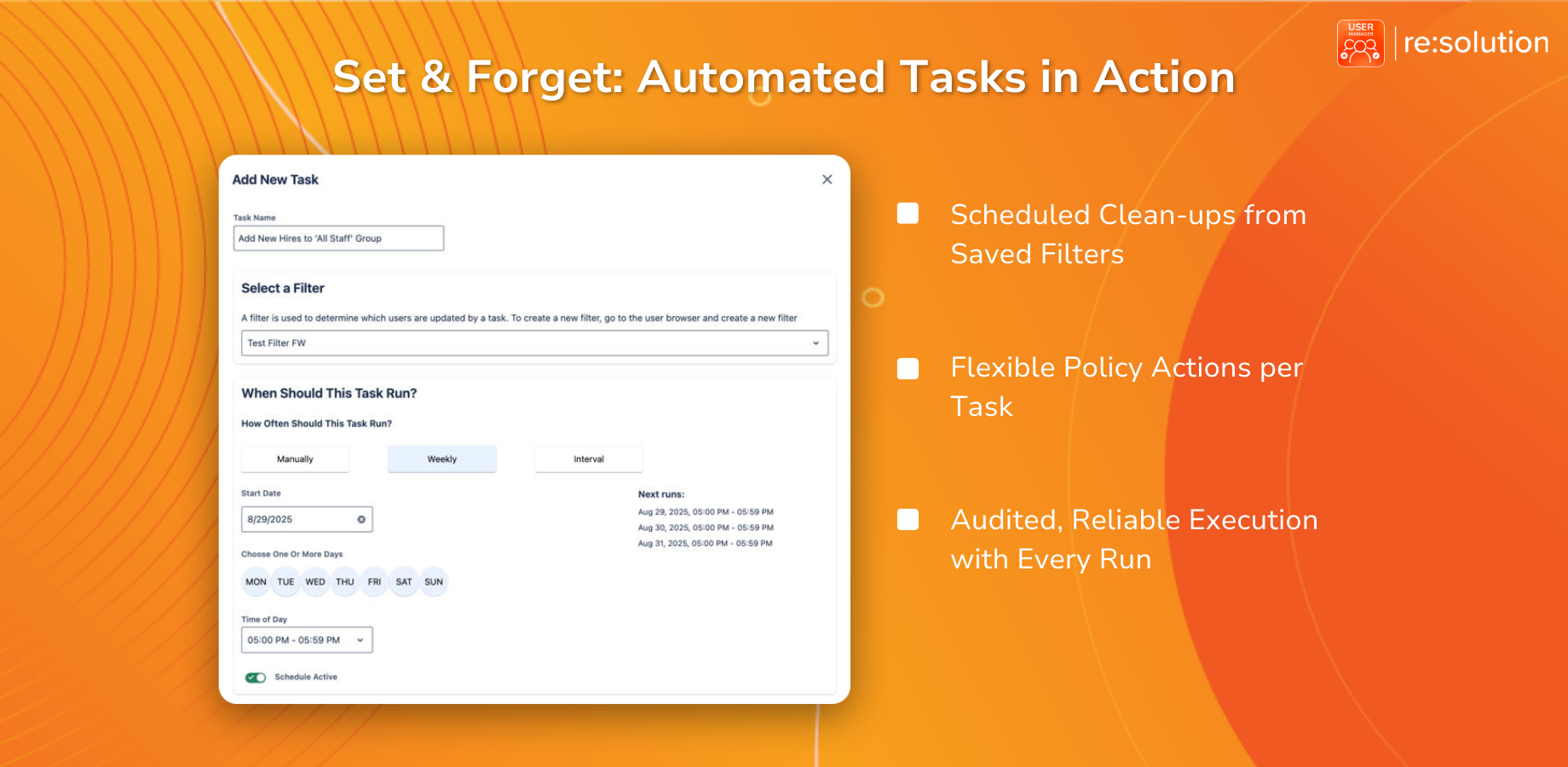
Click on bulk operations to see the available actions. One particularly powerful capability is the ability to combine multiple actions in a single operation. For example, you can simultaneously remove app access and remove users from groups – all in one go. This means you don’t have to run separate operations for each change you need to make.
After configuring your desired actions, confirm with the apply button. User Manager then runs the entire operation across every connected site at once. There’s no need to repeat the process site by site – the tool handles the cross-site execution automatically.
Reviewing Bulk Results
After the operation completes, User Manager provides bulk results that show you exactly what changed. This confirmation step is essential for accountability and audit purposes. You can see precisely which users were affected and what modifications were applied, giving you full visibility into the impact of your bulk operation.
Making It Repeatable Month After Month
The true value of this workflow emerges over time. By combining advanced filters with bulk operations and saved filter configurations, you create a repeatable process that can be executed quickly and consistently. Each month, you load your saved filter, review the current results, select the relevant users, and apply your bulk actions. What might have taken hours of manual work becomes a task measured in minutes.
User Manager by resolution is a License Optimizer and user management app for Jira and Confluence. It lets you see who is really using your Atlassian licenses across every product and site, reclaim unused seats, automate cleanup, and stay compliant – all from one console. You can get User Manager on the Atlassian Marketplace to start managing your users at scale today.
This video is part of our ongoing User Manager series. In our next episode, we’ll tackle one of the highest-stakes moments in Atlassian administration: right-sizing your cloud license tier before a migration so you don’t end up paying for users you don’t need. Subscribe to follow the whole series and stay up to date with every new installment.