

You install the integration, build an automation rule, and every new work item starts arriving with its customer attached. Then someone asks the obvious question: what about the 17,000 tickets already in the queue? A creation trigger only ever fires on creation, so it can never reach a single one of them. The connection you want between existing HubSpot records and historic Jira work items has to be made deliberately, in bulk, after the fact. HubSpot for Jira can do it, and most write-ups say it cannot.
This guide is the backfill: six steps that use a scheduled JQL search instead of a creation trigger, so one rule walks your history and attaches existing HubSpot records to the work items that already match them. It covers the identifier problem, the 1,000 work item ceiling, the setting that silently stops everything, and how to undo a bad run.
Quick answer: To link existing HubSpot records to historic Jira work items, build a Find HubSpot Object and Link rule that matches a unique HubSpot property against a Jira field, then fire it from a Scheduled trigger with a JQL query rather than a creation trigger. Batch the JQL under 1,000 work items and mark each batch as processed.
On this page
- Why creation triggers never reach your existing HubSpot records
- Step 1: find an identifier that exists on both sides
- Step 2: build the Find HubSpot Object and Link rule
- Step 3: trigger it with a scheduled JQL search
- Step 4: batch under the 1,000 work item limit
- Step 5: mark what you have already processed
- Step 6: verify on a small batch first
- When linking existing HubSpot records fails
- Existing HubSpot records FAQ
Why creation triggers never reach your existing HubSpot records
Almost every automation recipe for this integration hangs off a work item being created. That is right going forward and useless backwards: a creation rule evaluates a work item once, at the moment it is born, and your historic tickets were born long before the app was installed. Existing HubSpot records never get a second chance to attach themselves.
It is also why the common answer here is wrong. Search for it and you will be told bulk linking is unsupported and you need the API or a manual pass. Neither is true. Jira automation, now branded Flows, iterates over any set of work items you define with JQL and runs an app action against each. Those work items are treated as if they had just been created, which is exactly what linking existing HubSpot records requires.
Step 1: find an identifier that exists on both sides
The rule matches on a value, so the same value must exist in both systems. The app’s default identifiers are Email for a Contact and the object name for a Company, Deal or Ticket. Those are fine for new work and usually wrong for a backfill, because existing HubSpot records rarely have names that match cleanly. Two tickets called “Login issue” tell you nothing.
A legacy identifier is almost always better: an ID from the system you migrated off, an order number, a support reference already held on both sides. In Jira it needs to sit in a readable field, typically a custom field such as HubSpot Ticket ID, populated on the historic work items.
On the HubSpot side there is a hard constraint. The property must be marked Require unique values for this property, or it will not appear in the rule’s field list at all. Two things follow from HubSpot’s own property validation rules: you get a maximum of ten unique value properties per object, and uniqueness can only be set when the property is created. You cannot retrofit it onto a property you have been using for years. If your identifier lives in a non-unique property today, you will be creating a new one and populating it before anything else here works.
Step 2: build the Find HubSpot Object and Link rule
In the Jira admin sidebar, open HubSpot CRM Configuration, the page headed Welcome to HubSpot for Jira, and go to the Automation tab.
- Choose Create Automation Rule, name it something you will recognise in a log, and set the direction to Automation from Jira to HubSpot.
- Select the action Find HubSpot Object and Link, then Next.
- Pick the object type you are matching, for example Ticket.
- Under “Find the HubSpot ticket where these field values match”, set the Jira source field to your identifier field, and the HubSpot unique field to the matching property.
- Save Rule, then activate it. Rules are created paused, and a paused rule is the single most common reason people think this does not work.
Use Find HubSpot Object and Link and nothing else here. It links existing HubSpot records only, and it never creates anything. Its sibling, Link or Create and Link HubSpot Object, is right for live work and wrong for a backfill: every work item that fails to match would mint a new HubSpot record. For the distinction in depth, see our guides to finding and linking CRM objects automatically and to link or create behaviour.
Bring your history with you
Contacts, companies, deals and tickets inside the work item, six automation actions in each direction, and a backfill path for everything you already have. Free for up to 10 Jira users.
Step 3: trigger it with a scheduled JQL search
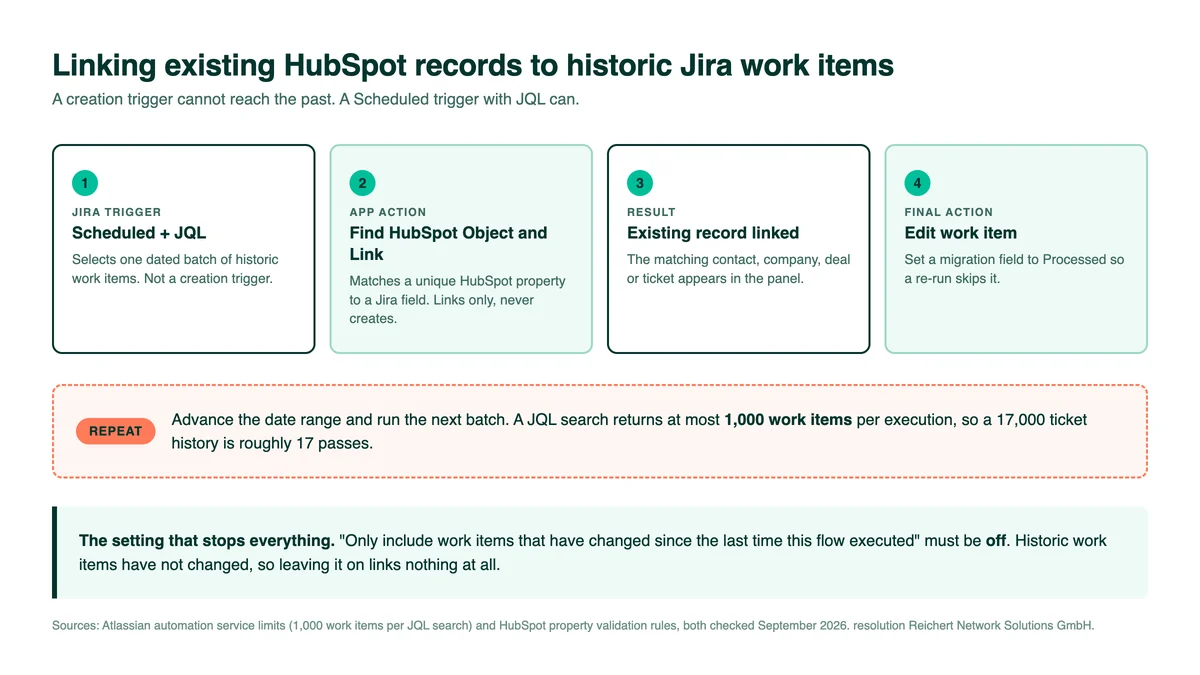
Now leave the app and go to Jira’s global automation. Create a flow with a Scheduled trigger and give it a JQL query. The action is your saved rule, reached through HubSpot CRM for Jira, then Find HubSpot Object and Link. The scheduled flow runs the action once per work item the query returns, which is how existing HubSpot records finally reach your history.
One setting decides whether any of this happens. Jira offers Only include work items that have changed since the last time this flow executed, and it must be off. Historic work items have not changed, that is the entire point of them, so leaving it enabled produces a flow that runs perfectly and links nothing at all. Note that Atlassian recommends enabling that option to stay inside service limits. For a backfill you are deliberately doing the opposite, which is exactly why the next step matters.
Step 4: batch under the 1,000 work item limit
A JQL search in a scheduled flow returns at most 1,000 work items per execution. This is a documented Atlassian automation service limit, not a quirk of the app, and it fails quietly: the flow processes the first 1,000 and the rest simply never happen. With 17,000 tickets you would silently link 6 percent of them and believe you were finished.
Split the work with date ranges so every execution stays under the ceiling:
project = CUSTOMER
AND "HubSpot Ticket ID" IS NOT EMPTY
AND created >= "2024-01-01"
AND created < "2024-03-01"
Run the batches in sequence, adjusting the window to how many work items each range holds. The non-empty identifier condition earns its place: a work item without one can never match existing HubSpot records, and it only burns your allowance.
Step 5: mark what you have already processed
Date ranges alone are fragile: re-run a batch after a failure and you reprocess all of it. Add a temporary field, say HubSpot Migration Status with values Pending and Processed, then exclude the done ones:
project = CUSTOMER
AND "HubSpot Ticket ID" IS NOT EMPTY
AND "HubSpot Migration Status" != Processed
AND created >= "2024-01-01"
AND created < "2024-03-01"
Then add an Edit work item action after the HubSpot action, setting that field to Processed. The flow now has a memory. You can stop it, restart it, and rerun a range without touching work items whose existing HubSpot records are already attached. Delete the field once the migration is done.
Step 6: verify on a small batch first
Point the JQL at a few dozen work items before you point it at years of them. A wrong source field does not error. It attaches the wrong existing HubSpot records confidently, at whatever scale you gave it.
- Run one narrow batch and let it finish.
- Open the Audit Log on the Automation tab. It records date and time, rule name, rule type, rule action, trigger ID and status. It does not refresh by itself, so reload it.
- Open several of the affected work items and confirm the expected existing HubSpot records appear in the HubSpot CRM panel, reached from View app actions under the work item title.
- Disable the scheduled flow when the backfill is complete. A scheduled rule left running is a scheduled rule someone will forget.
If a batch does go wrong, the existing HubSpot records can be detached in bulk rather than by hand. Our guide to bulk unlinking HubSpot CRM objects in Jira covers the cleanup path, and it is worth reading before you start rather than after.
When linking existing HubSpot records fails
| What you see | Why |
|---|---|
| The flow runs, nothing is linked | “Only include work items that have changed” is still enabled, or the identifier field is empty on historic work items |
| Exactly 1,000 work items processed | The batch hit the JQL search limit. Narrow the date range and run again |
| Your property is missing from the field list | It is not marked Require unique values for this property, which can only be set when the property is created |
| Only some work items linked | Expected. The rule skips anything with no match. Confirm the count in the Audit Log |
| The wrong record was linked | The matched property was less unique than you thought. Names are the usual culprit |
| The rule never fires at all | It was created paused and never activated on the Automation tab |
Existing HubSpot records FAQ
Can I link existing HubSpot records to Jira work items in bulk?
Yes. Build a Find HubSpot Object and Link rule in the app, then run it from a Jira Scheduled trigger with a JQL query instead of a creation trigger. The flow applies the rule to every work item the query returns, which lets you process history in batches.
Why does my scheduled rule link nothing?
Nine times out of ten the option “Only include work items that have changed since the last time this flow executed” is still enabled. Historic work items have not changed, so the query returns nothing. Turn it off and control the volume with JQL date ranges instead.
How many work items can one scheduled run process?
A JQL search in a scheduled flow is capped at 1,000 work items per execution, which is an Atlassian automation service limit. Beyond that the extra work items are skipped without an obvious error, so split the backfill into dated batches that each stay under the cap.
Will this create duplicate records in HubSpot?
Not if you use Find HubSpot Object and Link, which only ever links existing HubSpot records and never creates one. Link or Create and Link HubSpot Object would create a new record for every work item that fails to match, which is why it is the wrong action for a backfill.
Which HubSpot property can the rule match on?
Any property marked Require unique values for this property. HubSpot allows up to ten unique value properties per object and the setting can only be applied when the property is created, so a legacy identifier usually needs a new property rather than a change to an old one.
Related reading
- Find and link HubSpot CRM objects in Jira automatically
- Bulk unlink HubSpot CRM objects in Jira
- Create a HubSpot ticket from a Jira Service Management request
- Link or create HubSpot data in Jira
Sitting on years of tickets that should already know their customer? Try HubSpot for Jira on the Atlassian Marketplace, or read more on the HubSpot for Jira product page.
