

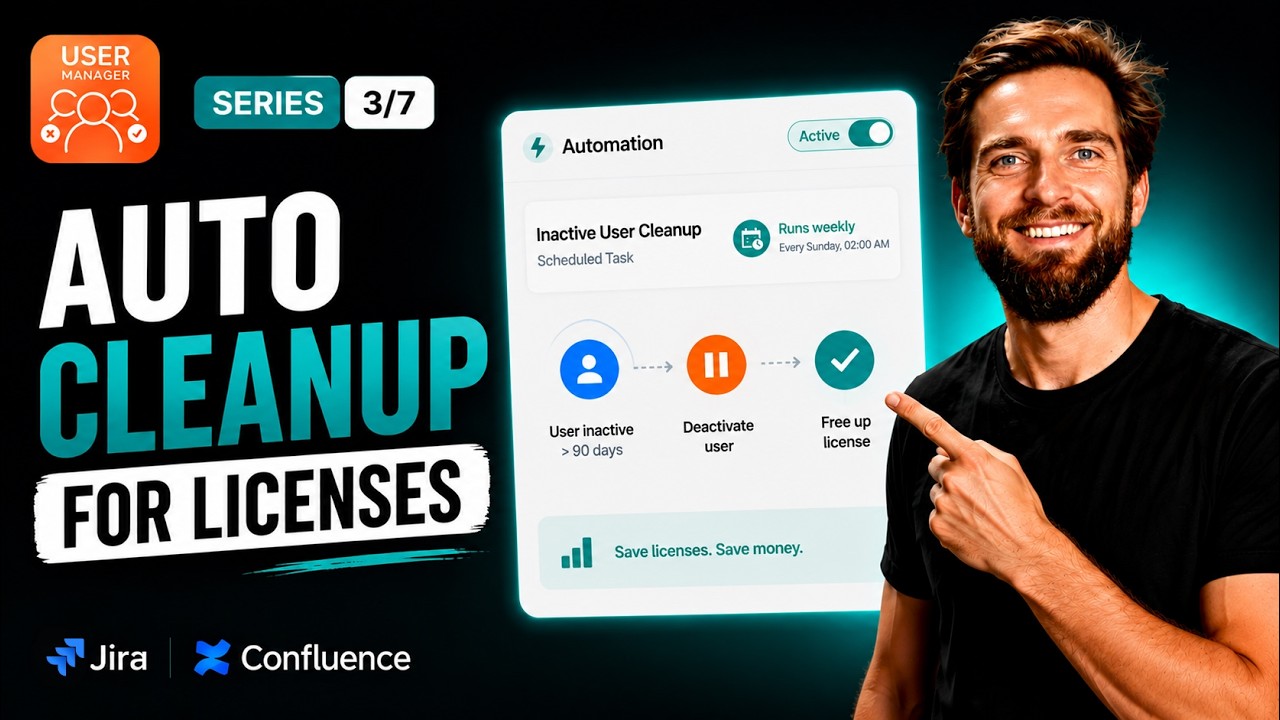
Automated Tasks in User Manager let you schedule recurring license cleanup so inactive Atlassian users are automatically deactivated on a set interval, eliminating the need to manually filter and remove access every week. In this article, we walk through exactly how to create an automated task – defining a filter, choosing an action, and setting a schedule – so your Jira and Confluence licenses stay optimized without any ongoing manual effort.
This builds directly on the manual deactivation workflow covered earlier in our User Manager series, turning a one-time cleanup into a repeating, hands-off process that reclaims idle seats continuously.
In our video, we demonstrate the full setup of an automated task from start to finish:
What Is an Automated Task in User Manager?
An automated task is essentially a saved rule that combines a filter with an action and runs on a defined schedule. If you have already used User Manager to manually find inactive users and remove their product access, you already understand the core components. The only difference is that instead of clicking a button each time, you hand the job off to a schedule. User Manager then executes the task at the interval you specify – weekly, at a custom interval, or on demand – so that newly idle licenses are reclaimed automatically without you lifting a finger.
Think of it this way: an admin sets up one task to run every week. Each Monday morning, User Manager checks who has crossed the inactivity threshold, removes their access, and frees those seats – all before the first coffee of the day. Because the process is fully automated, there is no risk of forgetting a week or letting unused licenses pile up over time.
How Returning Users Regain Access
A common concern with automatic deactivation is what happens when a user comes back. The answer lies in your approved domain settings. When a returning user logs in, Atlassian’s approved domain configuration with default product access automatically regrants their access. This means automated cleanup does not permanently lock anyone out – it simply reclaims seats from users who are genuinely inactive, and anyone who returns gets their access restored seamlessly upon their next login.
This creates a healthy, self-correcting cycle. Inactive users lose access and free up license seats, while active users who return are re-provisioned without any admin intervention required.
The Two-Step Cleanup Pattern
The recommended approach mentioned in our video is a two-step cycle. The first task handles the primary job: deactivating users who have been inactive beyond your chosen window. A second follow-up task cleans up anyone who came back, ensuring your user groups stay tidy and accurate. This pattern keeps both your license count and your user organization in good shape over the long term.
Step-by-Step: Creating an Automated Task
Part One – Define What Runs
The first half of setting up an automated task is specifying what the task actually does. Here is the process:
- Navigate to the Automated Task tab within User Manager.
- Click Create Task.
- Give your task a descriptive name so you can easily identify it later.
- Select a filter. For license cleanup, you would choose a filter such as “users inactive beyond your window,” which targets users who have not logged in within a timeframe you define.
- Under Choose Actions, pick Remove App Access.
- Select the specific products the action applies to – for example, Jira, Confluence, or any combination of Atlassian products you want to optimize.
This is the same filtering and action logic you would use in a manual cleanup, just packaged into a reusable, schedulable task.
Part Two – Decide When It Runs
Once you have defined what the task does, the next step is telling User Manager when to execute it:
- Under the Schedule section, choose how often the task should run. Options include manually (on demand), weekly, or a custom interval.
- If you select a custom interval, set the frequency – for example, run every one week.
- Choose a quiet time of day for execution, such as early morning, to minimize any potential disruption.
- User Manager displays the next scheduled runs so you can verify the timing and ensure there are no surprises.
- Flip the Schedule Active toggle on and hit Apply.
Your license cleanup is now fully on autopilot. From this point forward, User Manager will check for inactive users and remove their product access at every scheduled interval.
Why Automated License Cleanup Matters
Manually deactivating inactive users once is a satisfying win, but the real value comes from consistency. Licenses in Atlassian products like Jira and Confluence represent ongoing costs. Every seat occupied by someone who is no longer actively using the tool is money spent with no return. By automating the cleanup process, you ensure that your organization is only paying for the licenses it actually needs, week after week, without requiring any recurring admin time.
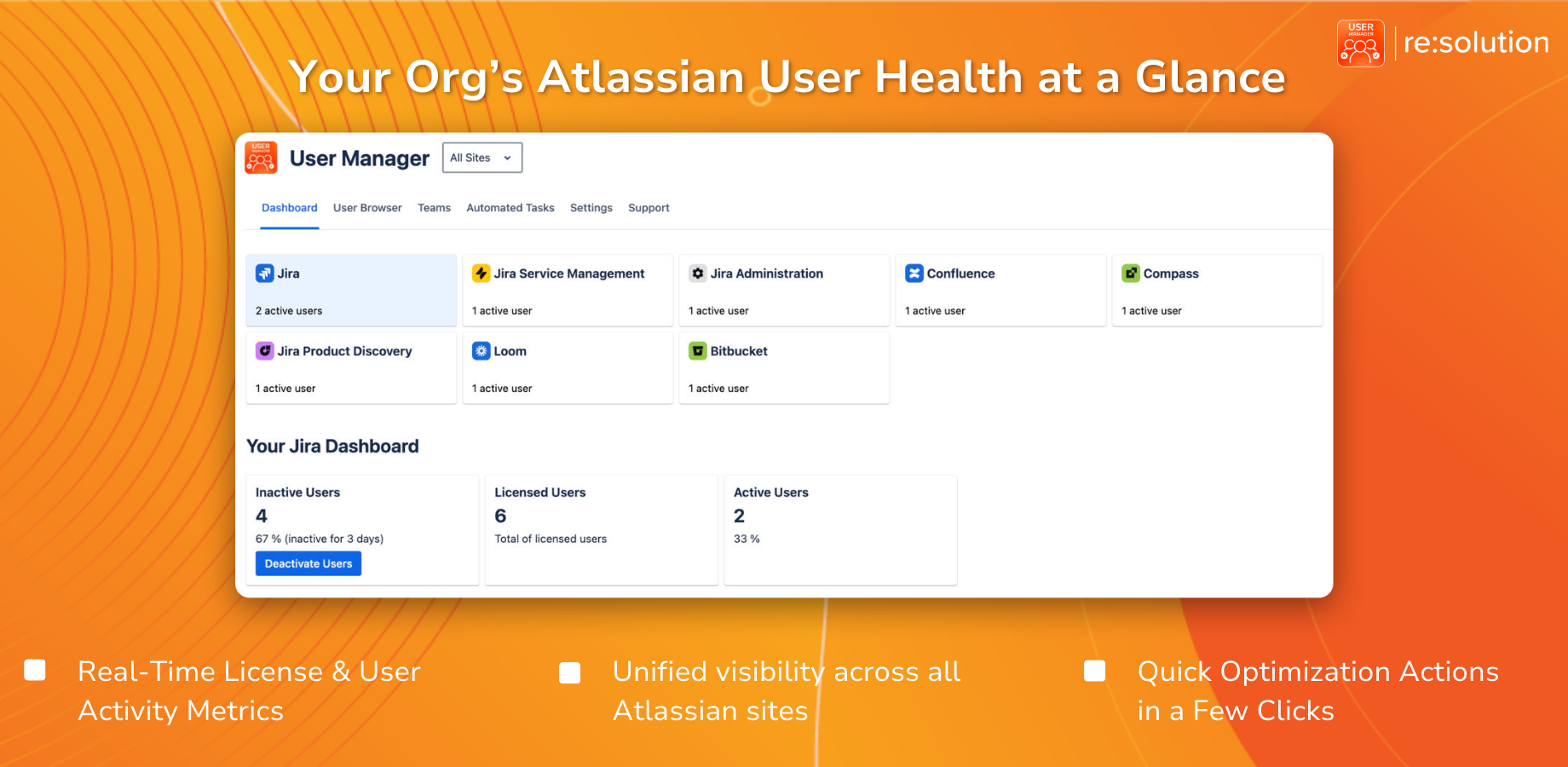
User Manager by resolution serves as a License Optimizer and user management app for Jira and Confluence. It lets you see who is really using your Atlassian licenses across every product and site, reclaim unused seats, automate cleanup, and stay compliant – all from one console. You can get User Manager on the Atlassian Marketplace to start optimizing your licenses today.
What Comes Next in the Series
With automated tasks handling recurring license cleanup, the next topic in the User Manager series covers a different scenario: offboarding someone who is leaving the company for good. While automated tasks handle the ongoing churn of inactive users, offboarding deals with permanent removal – a distinct workflow with its own considerations. Subscribe to follow along with the full series and learn how to manage every aspect of your Atlassian user lifecycle.
