

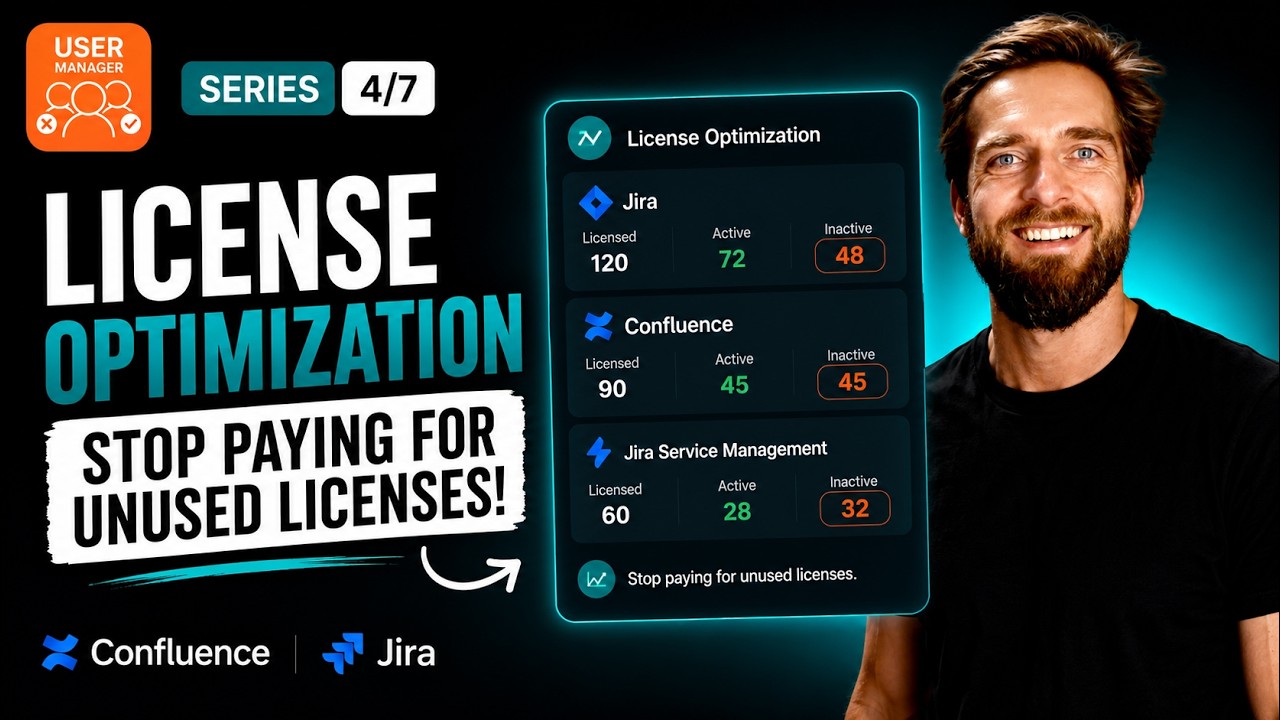
Safe Atlassian offboarding means revoking a departing employee’s access across every product in a single pass while preserving all the content they created – and in our video, we walk through exactly how to do this using User Manager by resolution. This guide gives you a clean, auditable, and fully reversible process for removing users without breaking Jira issues, Confluence pages, or Bitbucket repositories they left behind.
By combining bulk operations like removing app access, stripping group memberships, and suspending accounts, you can handle the entire offboarding workflow from one console in minutes.
Watch the full walkthrough in our video below:
The Offboarding Challenge: Security vs. Preservation
When an employee leaves your organization, you’re immediately faced with two competing priorities. First, you need to revoke their access right away across every Atlassian product for security and compliance reasons. Second, you need to make sure you don’t break anything they left behind – every comment, mention, Jira issue, and Confluence page they authored must stay perfectly intact. These two goals pull in opposite directions, and getting it wrong in either direction creates real problems.
Without a centralized tool, this process is painful. You’d have to hunt through Jira, then Confluence, then Bitbucket, revoking access in each one separately and hoping you didn’t miss a site. That’s slow, error-prone, and leaves gaps that auditors will find. User Manager solves this by letting you find a user once and remove their access everywhere at once – with a clean record of exactly what you did.
Understanding Atlassian Offboarding
Before taking action, it’s critical to understand the difference between the two main approaches User Manager offers. The choice matters most during offboarding because the consequences are account-wide.
Remove Product Access
This option frees up seats for specific products and is easy to reverse. It’s the right choice if there’s any chance the person might return – for example, a contractor between projects who may be re-engaged in the future. You’re selectively closing doors while keeping the account itself active.
Suspend User
Suspending a user goes significantly further. It blocks the entire account across every Atlassian product in sight at once. It also stops the billing while keeping their roles and groups intact, so the account can be cleanly restored later if needed. This is the strongest single lever for a clean exit, and it’s still fully reversible. For permanent departures, suspend is typically the recommended approach.
Critically, with either option, nothing the user created is deleted. Their Jira issues, Confluence pages, comments, and mentions all remain exactly where they should be. You’re closing the door, not bulldozing the house.
Step-by-Step: Safe Offboarding with User Manager
Part One: Find the Person
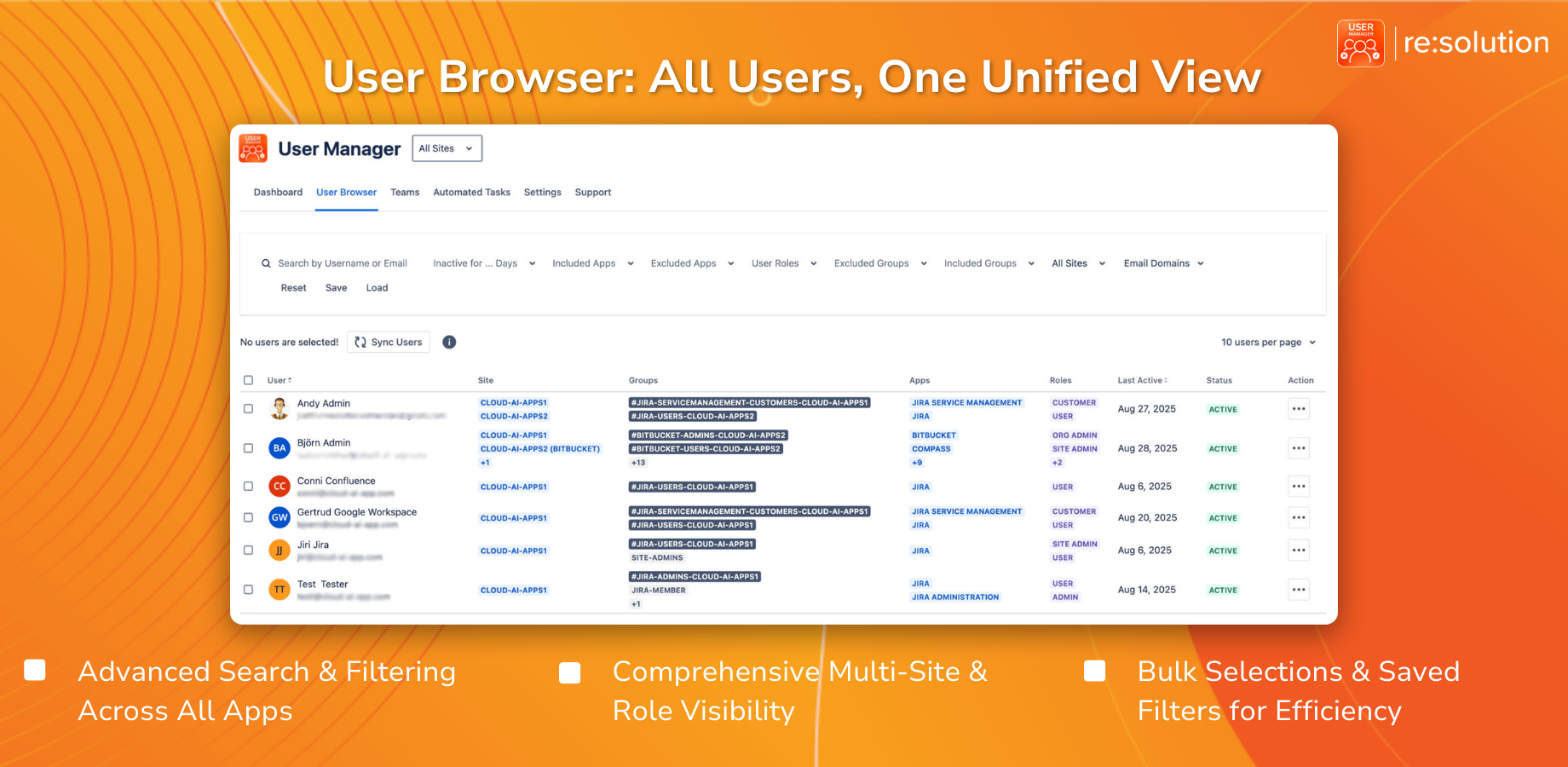
The first step is to locate the departing employee in User Manager. Open the tool and navigate to the User Browser. Use the search functionality to type the leaver’s name or email address. Once you find them, their profile shows you everything at a glance:
- Which products they currently have access to
- Which groups they belong to across every site
This overview serves as your confirmation that you’re acting on the right account before making any changes. Take a moment to review it – you want to be completely sure before proceeding with bulk operations.
Part Two: Close the Account Cleanly
With the correct user confirmed, select them and click Bulk Operations. This is where User Manager’s power becomes clear – you can combine multiple actions into a single pass for a clean exit:
- Remove App Access for every product – this strips their ability to log into any Atlassian product
- Remove from Groups – this eliminates all their permissions and strips every last bit of access in one move
- Suspend User – this blocks the whole account and stops billing, while remaining fully restorable if you ever need it
Once you’ve combined these actions, confirm with Apply and User Manager executes everything at once. In a single operation, the result is comprehensive: access is gone, the license is reclaimed, all content is preserved, and you have bulk results you can hand straight to compliance.
Why the Audit Trail Matters
One of the most valuable aspects of using User Manager for Atlassian offboarding is the clean audit trail it produces. When an auditor comes asking – and they will – you need to demonstrate exactly what actions were taken, when they were taken, and on which account. The bulk results generated by User Manager give you precisely this documentation.
Consider the typical scenario: an employee hands in their notice on a Friday. By the time their last day arrives, their access needs to be completely gone. With User Manager, you don’t have to scramble across multiple admin consoles or maintain a manual checklist. You find them once, execute the offboarding in one operation, and have the proof to show for it.
Recapping the Safe Atlassian Offboarding Process
The entire safe Atlassian offboarding workflow in User Manager comes down to three key principles. When someone leaves, you remove their access everywhere in one pass – no hunting through individual products. You choose between a reversible removal for temporary departures and a hard suspend for permanent exits. And their work stays exactly where it should, with a clean audit trail to prove everything was handled correctly.
User Manager by resolution is a License Optimizer and user management app for Jira and Confluence. It lets you see who is really using your Atlassian licenses across every product and site, reclaim unused seats, automate cleanup, and stay compliant – all from one console. This offboarding workflow is just one part of what the tool offers, and it’s part of our ongoing User Manager series covering everything from handling inactive users to scaling operations across hundreds of accounts with advanced filters and bulk operations.
