

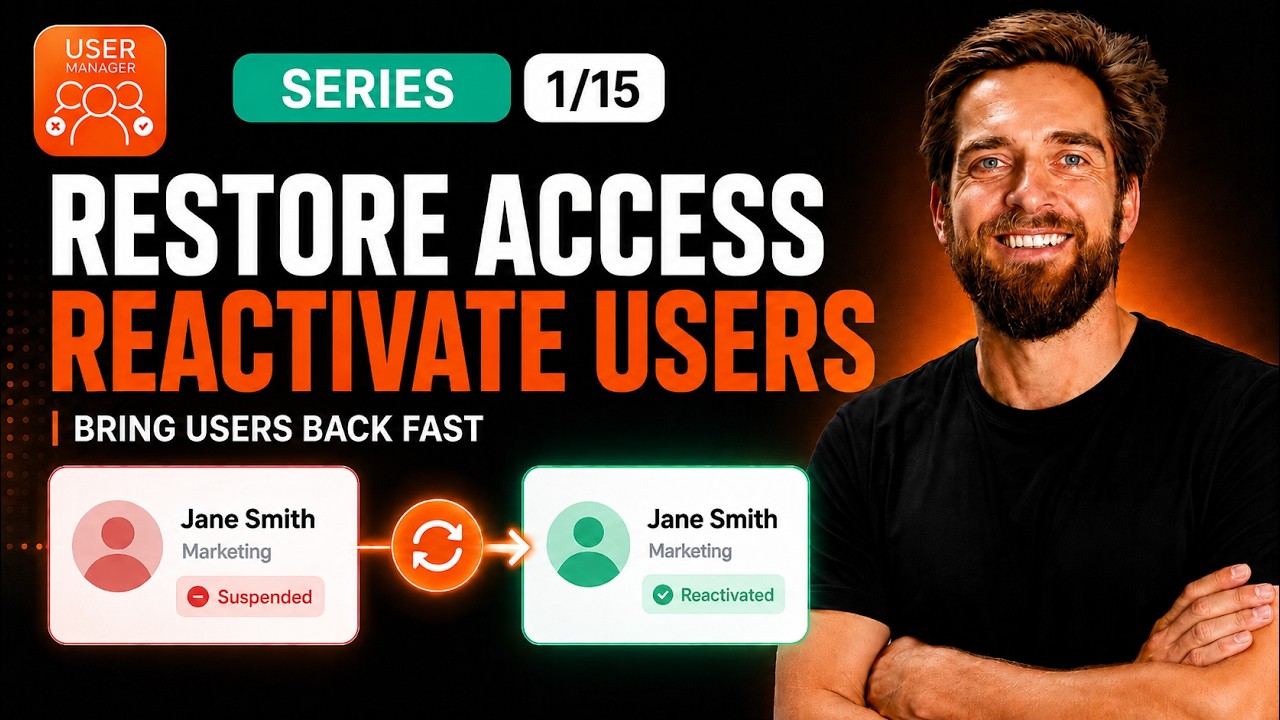
Restoring user access in Atlassian tools requires understanding whether a user’s license was simply removed or their account was fully suspended, as each scenario demands a different reactivation approach. In our latest video, we walk through both paths so you can bring someone back cleanly, today, without a support ticket and without losing any of their previous work.
This guide covers the critical distinction between removing app access and suspending a user, and shows you exactly how to reverse each action using User Manager by resolution.
Watch the full walkthrough in our video below:
Understanding the Two Types of Access Removal
Before you can restore someone’s access, you need to understand what kind of access removal was originally applied. User Manager treats these two situations very differently, and choosing the wrong restoration method can cause confusion or fail to bring the user back properly.
Remove App Access: The Lighter Touch
When you use Remove App Access, you are simply freeing up a user’s license seat. The account itself was never disabled – the user just lost their product access. Bringing them back from this state is straightforward: you add them back into the appropriate product access group, and their access returns immediately. This is the simpler of the two scenarios and requires no special restore action.
Additionally, if your organization uses approved domains with default product access, a returning user can be autoprovisioned by Atlassian the moment they sign in. Single sign-on handles the login, and those access settings automatically hand back the product access without any manual intervention from an admin.
Suspend User: The Harder Stop
Suspension is a much more deliberate and heavier action. When you suspend a user, it blocks their login across every Atlassian service entirely. This isn’t just about freeing a seat – it’s a complete lockout. To undo a suspension, the account must be formally restored using the Restore User Access action within User Manager.
Real-World Scenarios for Restoring Access
Consider a common workplace situation: someone returns from months of parental leave, or a contractor comes back for a new project engagement. While they were away, your team responsibly reclaimed their seat or suspended the account entirely to optimize licensing costs. Now that person needs back in – ideally today, without filing a support ticket, and without losing a single piece of work they previously created. This is exactly the scenario that restoring access is designed to handle.
The important reassurance here is that regardless of whether you removed app access or suspended the user, none of their work was ever touched. Issues they created, pages they authored, comments they left – everything remains intact and is immediately associated with their account upon restoration.
Where to Find the Restore User Access Action
The Restore User Access action appears in two places within User Manager. First, you can find it in the bulk operations modal, which is useful when you need to restore one or several users manually. Second, it is available as an automated task action, which allows you to build restoration workflows into your existing automation rules.
The rule of thumb is simple to remember: Remove App Access is reversed by regranting groups. Suspend is reversed with Restore User Access. Match the undo to the original action.
How the App Syncs Your Organization
One of the most powerful aspects of User Manager is its organization-wide sync capability. The app performs a full sync every 24 hours, with real-time syncing on the roadmap for the future. This means it sees every suspended user regardless of where the suspension originated – whether it was done inside User Manager or directly in Atlassian by another admin.
This is a critical detail: if another administrator suspended a user directly through Atlassian’s admin console, User Manager can still detect and restore that user. You are not limited to only restoring suspensions that were created within the app itself.
Step-by-Step: The Safe Path to Restoration
Step 1: Find Who’s Coming Back
Open the user browser within User Manager and use the search box. You can search by username or email to locate a specific person. Alternatively, you can filter the user status to “Suspended” to see every user currently in that state. The status column tells you exactly what you’re dealing with before you touch anything, so you always know which restoration path to follow.
Step 2: Choose Your Restore Method
If you only removed app access (freed the license seat), select the user, click bulk operations, and choose “Add to Groups.” Add them back to the correct product access group, click apply, and the seat is theirs again. This is instantaneous and requires no additional steps.
If the user is suspended – whether the suspension happened inside the app or directly in Atlassian – select them, open bulk operations, and choose “Restore User Access” to lift the suspension. The user will regain their ability to log in across all Atlassian services.
Important Timing Note
If a suspension was applied elsewhere just moments ago and you don’t see it reflected yet, click Sync Users to pull the latest state into User Manager right now. Since the automatic full sync runs every 24 hours, this manual sync ensures you are working with the most current account data without having to wait.
Key Takeaways for Clean Reactivation
- Removing app access is easily reversed by re-adding the user to the appropriate product access groups
- Organizations using approved domains and default product access can have Atlassian automatically regrant access on the next sign-in
- Suspension is the deliberate, heavier stop that requires the Restore User Access action to reverse
- The app syncs your full organization, meaning it can restore users suspended anywhere – not just those suspended inside User Manager
- Always match the undo to the original action that was taken, and nobody loses a thing
About User Manager
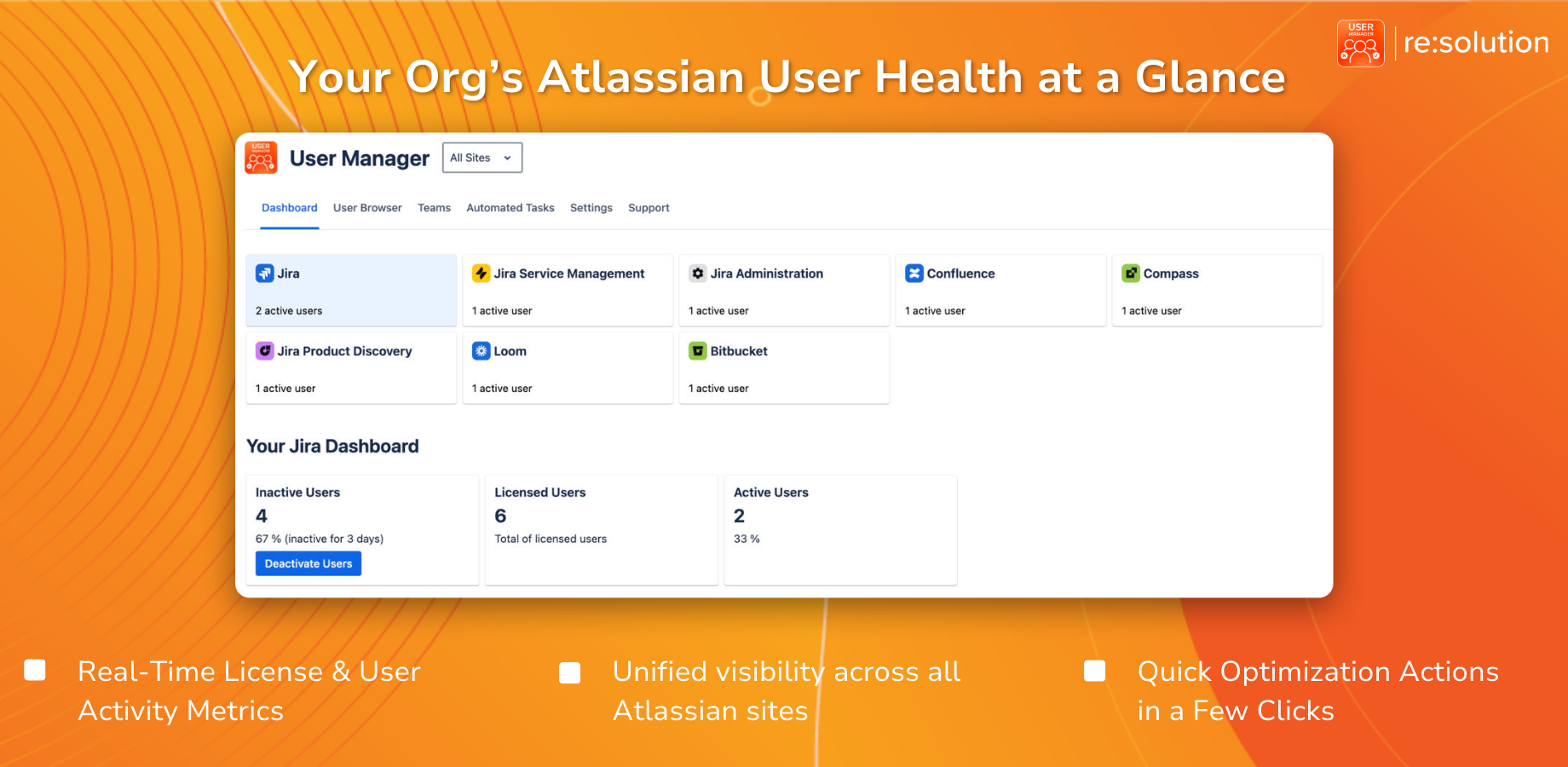
User Manager by resolution is a License Optimizer and user management app for Jira and Confluence. It lets you see who is really using your Atlassian licenses across every product and site, reclaim unused seats, automate cleanup, and stay compliant – all from one console. If you’re managing Atlassian licensing at scale, this tool provides the visibility and control you need to optimize costs without disrupting your teams.
This video is part of our ongoing User Manager series. In previous episodes, we covered taking access away, freeing seats, offboarding workflows, and cleaning up inactive accounts. In our next installment, we tackle one of the trickiest deactivation questions: how to free a license without breaking the ability to assign work to that person or mention them in issues and pages. Subscribe to follow the whole series.
