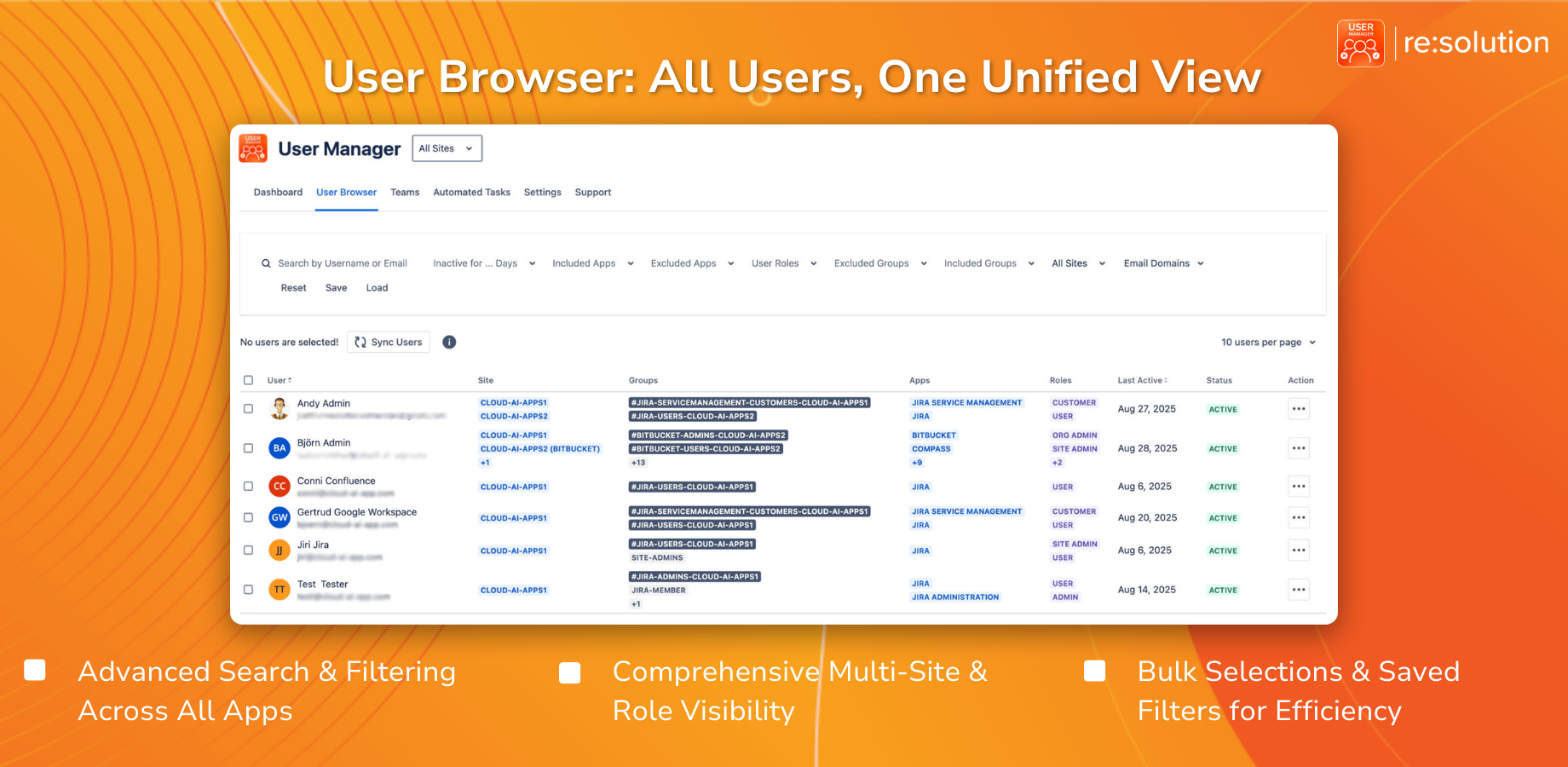

Multi-site management in Atlassian environments allows administrators to audit and control user access across every site from a single console, eliminating the need to log into each site separately. In our video, we walk through how User Manager enables this by connecting to your Organization API key and providing a unified view of users, their site access, activity status, and bulk operations – all scoped precisely to the sites and products you choose.
This guide breaks down the key features of multi-site management in User Manager, including the site selector, the sites column behavior, context-aware last active tracking, and per-site bulk operations.
Watch our full walkthrough of Atlassian multi-site management in User Manager below:
The Problem: Managing Users Across Multiple Atlassian Sites
If your organization runs more than one Atlassian site, you already know the pain. Logging into each site separately, comparing user lists by hand, and never being quite sure who has access where – it’s a time-consuming and error-prone process. This is especially true for organizations that have grown through acquisition or expanded their tooling across multiple Jira and Confluence instances. A contractor might have been added to two sites months ago, and without a centralized view, you’ve simply lost track. Instead of performing three separate audits across three separate admin consoles, User Manager lets you open one screen and see that user’s entire footprint in a single row.How Atlassian Multi-Site Management Works in User Manager
User Manager installs on one Jira site, but through your Organization API key, it sees and manages every site in the organization. One login, one screen, every site. This is the core principle behind User Manager’s multi-site management capability – you don’t need to switch between admin consoles or maintain separate spreadsheets of who has access where.The Atlassian Site Selector
At the top of the app sits the site selector. It reads all sites by default and controls both the dashboard and the user browser simultaneously. When you select a specific site, both views filter accordingly. When set to “all sites,” you get the broadest possible view of your organization’s user landscape. This single control point is what drives the entire multi-site experience and ensures that your dashboard metrics and user lists are always aligned to the same scope.The Sites Column: Always Showing the Full Footprint
One behavior that every admin needs to understand – because it often surprises people – is how the sites column works in relation to filters. When you filter the user browser to a single site, the user list narrows to show only users on that site. However, the sites column still displays all the sites where each user has access. This is deliberate and is not a bug. The filter decides who appears in your list. The sites column always tells you the user’s full reach across your organization. This design choice exists for an important reason: so you never accidentally remove someone from one site while forgetting they’re active on another. You always have the complete access picture, regardless of how you’ve filtered your view. If a row has more sites than can fit in the column, a plus button expands the full list, with site names appearing on hover. This keeps the interface clean while ensuring no information is hidden.Understanding the Context-Aware Last Active Column
The last active column in User Manager is context-aware, meaning it adapts based on your current filter selections. Here’s how it behaves across different scopes:- When viewing all sites, the last active column shows global activity – the most recent activity across any site in your organization.
- When you pick a single site, the column narrows to show activity only on that specific site.
- When you add a product filter (such as Jira or Confluence), the column narrows further to show activity within that specific app on that specific site.
- If a user has never been active, the column shows their account creation date instead, giving you a different but equally useful data point.
Bulk Operations Across Atlassian Sites
Once you’ve scoped your view – whether to a single site or all sites with an inactivity filter – your selection and bulk operations apply across exactly that scope. This is where multi-site management truly saves time compared to site-by-site administration. The workflow is straightforward: select your users, click bulk operations, and choose your action. When you choose to remove Atlassian app access, for example, User Manager displays product cards that are clearly labeled with the site each product belongs to. This means you can pull Confluence access on one site while leaving Jira access on another completely untouched. It’s one operation that targets exactly the right sites and products – no site-by-site repetition required. This level of granular control is critical for organizations managing licenses across multiple sites. Rather than making broad, sweeping changes that might affect users on sites where they’re still active, you can precisely target the access you want to modify.Key Takeaways for Multi-Site Management
To summarize the core concepts covered in our video, here are the essential points every Atlassian admin should remember:- The site selector drives the entire app – both the dashboard and user browser – and defaults to all sites.
- The sites column always shows a user’s full footprint across your organization, regardless of your current filter. The filter controls who appears; the column shows where they exist.
- Last active is context-aware and adapts to your selected site and product scope. Always interpret it with your current filters in mind.
- Bulk operations apply per site with clearly labeled product cards, so you can make precise changes without unintended side effects.
About User Manager
User Manager by resolution is a license optimizer and user management app for Jira and Confluence. It lets you see who is really using your Atlassian licenses across every product and site, reclaim unused seats, automate cleanup, and stay compliant – all from one console. If you’re managing multiple Atlassian sites and want to bring your user administration under a single, unified interface, User Manager eliminates the need for manual, site-by-site auditing. This video is part of our ongoing User Manager series. In our next episode, we’ll look at the teams view – browsing and auditing Atlassian teams across your entire organization. Subscribe to follow along with the full series as we continue to explore every capability of User Manager.