

In our latest video, we walk through the “Unlink All HubSpot Objects“ automation rule – a bulk-cleanup action that removes every link of a chosen HubSpot CRM object type from a Jira work item in a single trigger, with no field mappings required. This guide will show you exactly how to set it up in two simple parts so you can automate large-scale unlinking whenever a campaign closes, a project archives, or any status change fires in Jira.
This is Episode 5 of our HubSpot for Jira automation rules series, and it’s the simplest setup we’ve covered so far – perfect for teams managing high-volume object links between HubSpot CRM and Jira.
Watch the full walkthrough in our video below:
What the Unlink All HubSpot Objects Rule Does
The Unlink All HubSpot Objects rule is designed for bulk cleanup. When something happens in Jira – such as a status change – the app removes all the links between a Jira work item and the HubSpot objects connected to it, all in one go. You pick the object type you want to target: Contacts, Companies, Deals, or Tickets. Every link of that chosen type is removed at once.
Crucially, nothing is deleted. The HubSpot records and the Jira work item both stay exactly as they are. Only the connections between them are cleared. This makes the rule safe and non-destructive – it simply severs the associations without touching the underlying data in either system.
How This Differs from the Previous Unlinking Rule
If you followed our earlier episodes, you’ll recall that the “Find HubSpot Object and Unlink“ rule searches for one specific object and unlinks just that one. The Unlink All rule takes a fundamentally different approach: it doesn’t search for anything. It simply unlinks every connected object of the type you choose, in bulk. This is why the keyword here is “all.”
Because the rule isn’t looking for a particular record, there are no field mappings to configure. This makes it the only rule in the entire series that skips the field mapping step entirely, and it’s why the setup is the simplest of all the rules we’ve covered.
Use Case: Campaign Cleanup at Scale
To bring this to life, imagine your marketing team uses Jira to manage campaign launches. A single campaign work item might be linked to dozens – or even hundreds – of HubSpot CRM contacts who were part of the campaign audience. Once the campaign is closed out, those contact links are no longer relevant. But you certainly don’t want to unlink each contact one by one. That would take forever and introduce the risk of human error.
With this rule, the moment the work item moves to a “Closed” status, every contact link is cleared in a single automated action. No manual intervention, no tedious cleanup. This is especially powerful for teams running large-scale marketing operations where campaigns routinely involve significant numbers of linked CRM records.
Other practical triggers beyond “Closed” include statuses like “Archived” or “Cancelled” – any status that signals the work item no longer needs its HubSpot CRM associations.
Two-Part Setup: Step-by-Step
The setup follows the same two-part flow used throughout this series: first inside the HubSpot for Jira app, then inside Jira Global Automation. As mentioned, this one is the simplest configuration of all the rules covered so far.
Part 1: Setup Inside the HubSpot CRM for Jira App
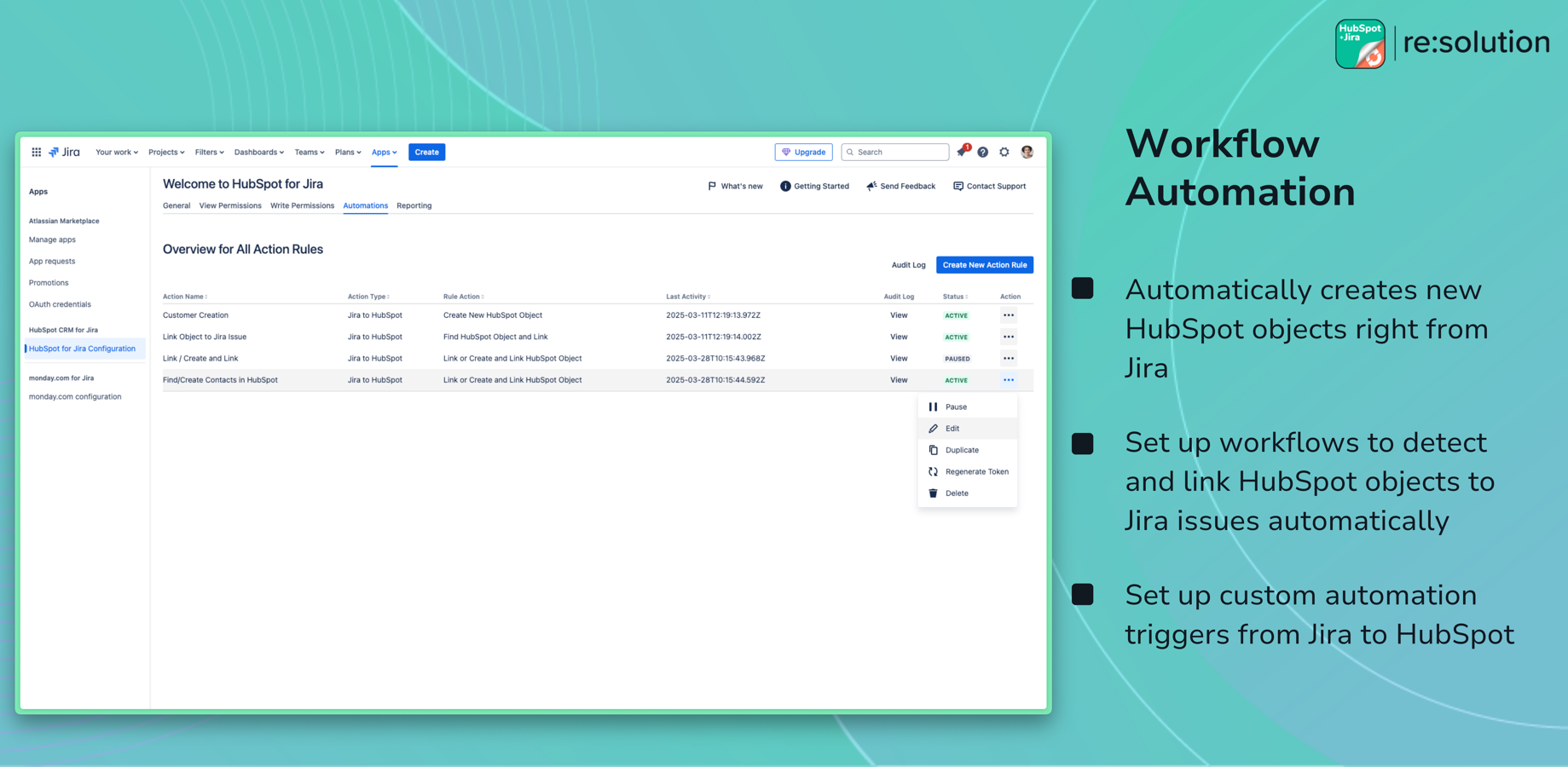
Start by opening the HubSpot for Jira configuration and navigating to the automation screen. From there, follow these steps:
- Create a new automation rule by clicking the appropriate button on the automation screen.
- Name your rule something clear and descriptive. For example: “Unlink all contacts when campaign closes.” Hold on to this name – you’ll need it in Part 2 when connecting it to Jira Global Automation.
- Select the direction – choose that this is a Jira to HubSpot automation.
- Select the action – in this case, “Unlink all HubSpot objects.”
- Select the Jira space the rule should apply to.
- Choose the HubSpot object type to unlink: Contact, Company, Deal, or Ticket.
- Save the rule.
That’s the entirety of Part 1. No field mappings are needed because the rule isn’t searching for anything specific – it’s clearing every link of the chosen type.
Part 2: Setup in Jira Global Automation
Now jump over to Jira Global Automation and create a new automation flow. Here’s how to wire it up:
- Pick your trigger. Status changes work especially well here. Common choices include “Closed,” “Archived,” or “Cancelled” – any status transition that indicates cleanup should occur.
- Add an action and from the list of available actions, find “HubSpot CRM for Jira.”
- From the HubSpot CRM for Jira actions, choose “Unlink all HubSpot objects.”
- Select the rule you built in Part 1 by the name you gave it.
- Save and enable your automation.
Once enabled, you have a one-click cleanup that fires automatically whenever your chosen trigger occurs. One trigger, every linked object of your chosen type disconnected in bulk.
Important Notes About the Current Version
This video showcases the upcoming HubSpot for Jira Automations experience, which allows you to configure your saved automation rules directly in Jira Global Automations without using web request URLs. The automation logic, use cases, and overall setup process remain largely the same as in the current version of the app.
The primary difference is that the new experience simplifies configuration by eliminating the need to create and manage web request URLs. If you’re using the current version of the app, some of the steps shown may look different and require web request URLs to achieve the same outcome. For guidance on setting up automations in the current version, refer to the official documentation.
About HubSpot CRM for Jira
HubSpot for Jira is built by resolution Reichert Network Solutions GmbH – a Platinum Atlassian Marketplace Partner. The app keeps your HubSpot CRM and your engineering tracker perfectly in sync: link issues to HubSpot records, push data both ways, automate object creation, and give every team the context they need without leaving their tool.
This rule – Unlink All HubSpot Objects – is Episode 5 in our full automation rules series. The complete series covers seven rules in total: Create New HubSpot Object, Find HubSpot Object and Link, Link or Create and Link, Find HubSpot Object and Unlink, Unlink All HubSpot Objects, Notify Linked HubSpot Objects, and Create New Work Item (HubSpot to Jira). Next up in the series is the Notify Linked HubSpot Objects rule, which opens up new possibilities for keeping your HubSpot records informed about changes happening in Jira.