
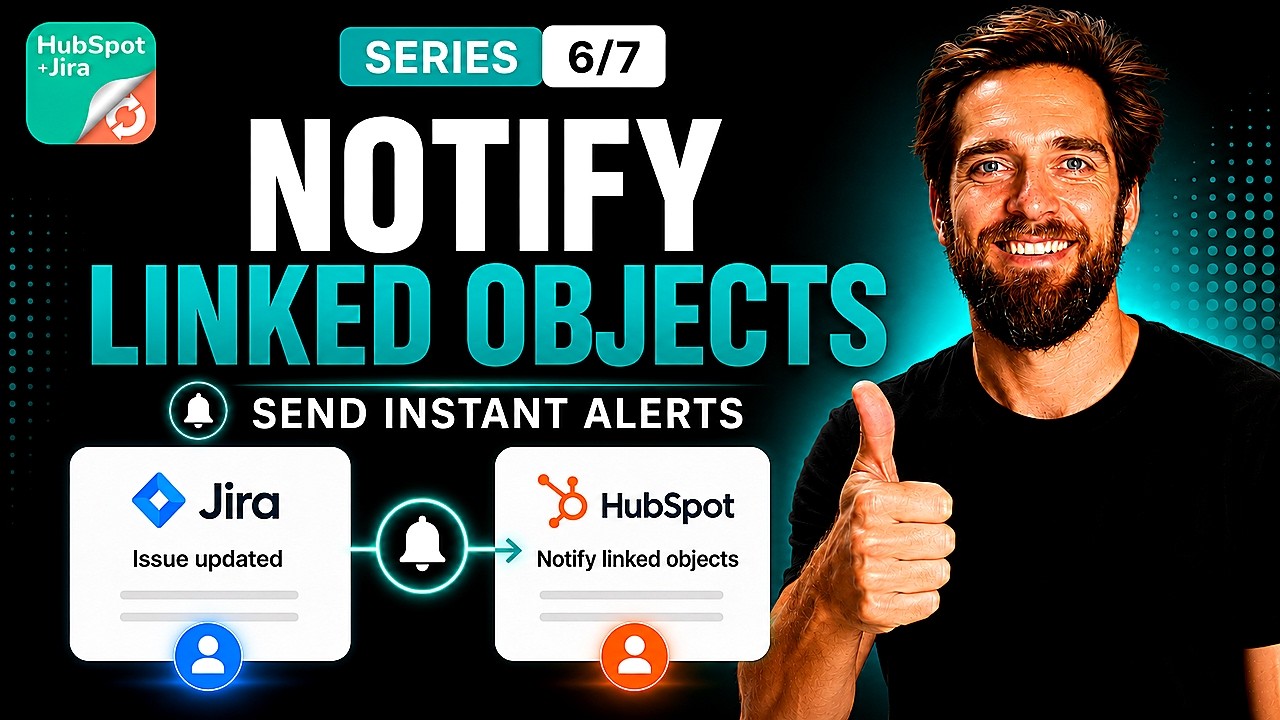
Understanding Jira to HubSpot Automation
The Notify Linked HubSpot Objects automation rule in HubSpot for Jira allows you to automatically push Jira updates as notes onto linked HubSpot records, keeping deal, contact, company, and ticket owners informed without ever leaving HubSpot. In this article, we walk through exactly what this rule does, a practical sales use case, and the complete two-part setup process so you can start delivering real-time Jira to HubSpot Automation progress updates to your CRM users.
This is Episode 6 of our Jira to HubSpot automation rules series, and it builds directly on the linking rules covered earlier to create a seamless flow of information between your engineering and sales teams.
Watch the full walkthrough in our video below:
What the Notify Linked HubSpot Objects Rule Does
When something happens in Jira, this rule automatically adds a note to a linked HubSpot object – whether that’s a contact, company, deal, or ticket – to let the object’s owner know what changed on the Jira side. A common example is a status update: when a Jira work item transitions from one status to another, a note is dropped onto the linked HubSpot record describing the change.
The goal is straightforward: keep the HubSpot user who owns the customer relationship in the loop without them ever needing to open Jira. No Jira login required, no Slack pings, no chasing developers for status updates. The information arrives right where your team already works.
Understanding the Rule Name
The name “Notify Linked HubSpot Objects” has two important parts worth breaking down. First, “Notify” means the rule adds a note. It doesn’t create, link, or change records in any way – it simply delivers information. Second, “Linked” means it only works on HubSpot objects that are already connected to the Jira work item. The rule won’t search for or create new connections.
This is why the rule pairs naturally with the linking rules earlier in our series, such as “Find HubSpot Object and Link” or “Link or Create and Link.” The workflow is logical: first, you link the records using one of those earlier rules, and then this notify rule keeps the owners updated as things move forward in Jira.
Use Case: Sales Reps Stay Informed on Development Progress
To make this tangible, picture a sales rep who owns a HubSpot deal that’s linked to a Jira work item. Perhaps the engineering team is building a custom integration request for that customer, and the work is being tracked in Jira.
When the Jira work item moves from “In Progress” to “Ready for QA,” this rule automatically drops a note onto the deal in HubSpot, notifying the rep that progress has been made. The sales rep sees the update right in their deal timeline – no context switching, no manual follow-ups, no dependencies on someone remembering to pass along the information.
This kind of automation is especially valuable for teams where sales and engineering operate in different tools but need to stay aligned on customer deliverables. The rep can confidently update the customer on progress because the information flows to them automatically.
Setup: Part 1 – Inside the HubSpot for Jira App
The setup follows the same two-part flow used by other rules in the series. The first part takes place inside the HubSpot for Jira app configuration.
Step-by-Step Configuration
- Open the HubSpot for Jira configuration and navigate to the automation screen.
- Click to create a new automation rule.
- Give your rule a specific name, such as “Notify Deal Owner on Status Change.” Remember this name exactly, as you will need it in Part 2.
- Select that this is a Jira to HubSpot automation.
- Select the action: Notify Linked HubSpot Objects.
- Select the Jira space (project) the rule should apply to.
- Choose the HubSpot object type to notify – contact, company, deal, or ticket.
- Configure the notification scope (detailed below).
- Save the rule.
The Notification Scope Toggle
This step is unique to this rule and deserves special attention. You will see an option labeled “Add note to all linked HubSpot objects.” If you leave this checked, a note will be added to every linked object of the selected type. If you uncheck it, the note will only be added to the first linked object.
The general guidance is this: for broad updates where multiple stakeholders need to know about progress, you typically want all owners notified. For more targeted notifications – perhaps when only the primary relationship owner needs the update – notifying just the first linked object might be sufficient.
Setup: Part 2 – Inside Jira Global Automation
With the rule saved in the HubSpot for Jira app, the second part of the setup takes place in Jira Global Automation, where you define when the rule should fire.
- Open Jira Global Automation and create a new automation flow.
- Pick your trigger. Status changes are the most common fit here since that’s the kind of update HubSpot owners tend to care about most.
- Add an action and find “HubSpot CRM for Jira” from the list of available actions.
- From the HubSpot CRM for Jira actions, choose Notify Linked HubSpot Objects.
- Select the rule you built in Part 1 by the name you gave it.
- Save and enable your automation.
Once enabled, your HubSpot owners will start receiving timeline notes automatically whenever the Jira side moves. The notes appear directly on the HubSpot record’s activity timeline, giving owners immediate visibility into engineering progress.
Important Note About the Automations Experience
This video showcases the upcoming Jira to HubSpot Automation experiences, which allows you to configure your saved automation rules directly in Jira Global Automations without using web request URLs. The automation logic, use cases, and overall setup process remain largely the same as in the current version of the app.
The primary difference is that the new experience simplifies configuration by eliminating the need to create and manage web request URLs. If you are using the current version of the app, some of the steps shown may look different and require web request URLs to achieve the same outcome. For guidance on setting up automations in the current version, refer to the official documentation.
How This Rule Fits into the Full Series
This rule is Episode 6 in our complete automation rules series for HubSpot for Jira. The series covers seven rules in total:
- 01 · Create New HubSpot Object
- 02 · Find HubSpot Object and Link
- 03 · Link or Create and Link
- 04 · Find HubSpot Object and Unlink
- 05 · Unlink All HubSpot Objects
- 06 · Notify Linked HubSpot Objects (this article)
- 07 · Create New Work Item (HubSpot → Jira)
The notify rule is most effective when used after establishing links between Jira work items and HubSpot records using rules 02 or 03. This creates a complete automation workflow: records get linked automatically, and then owners stay informed as work progresses – all without manual intervention from either team.
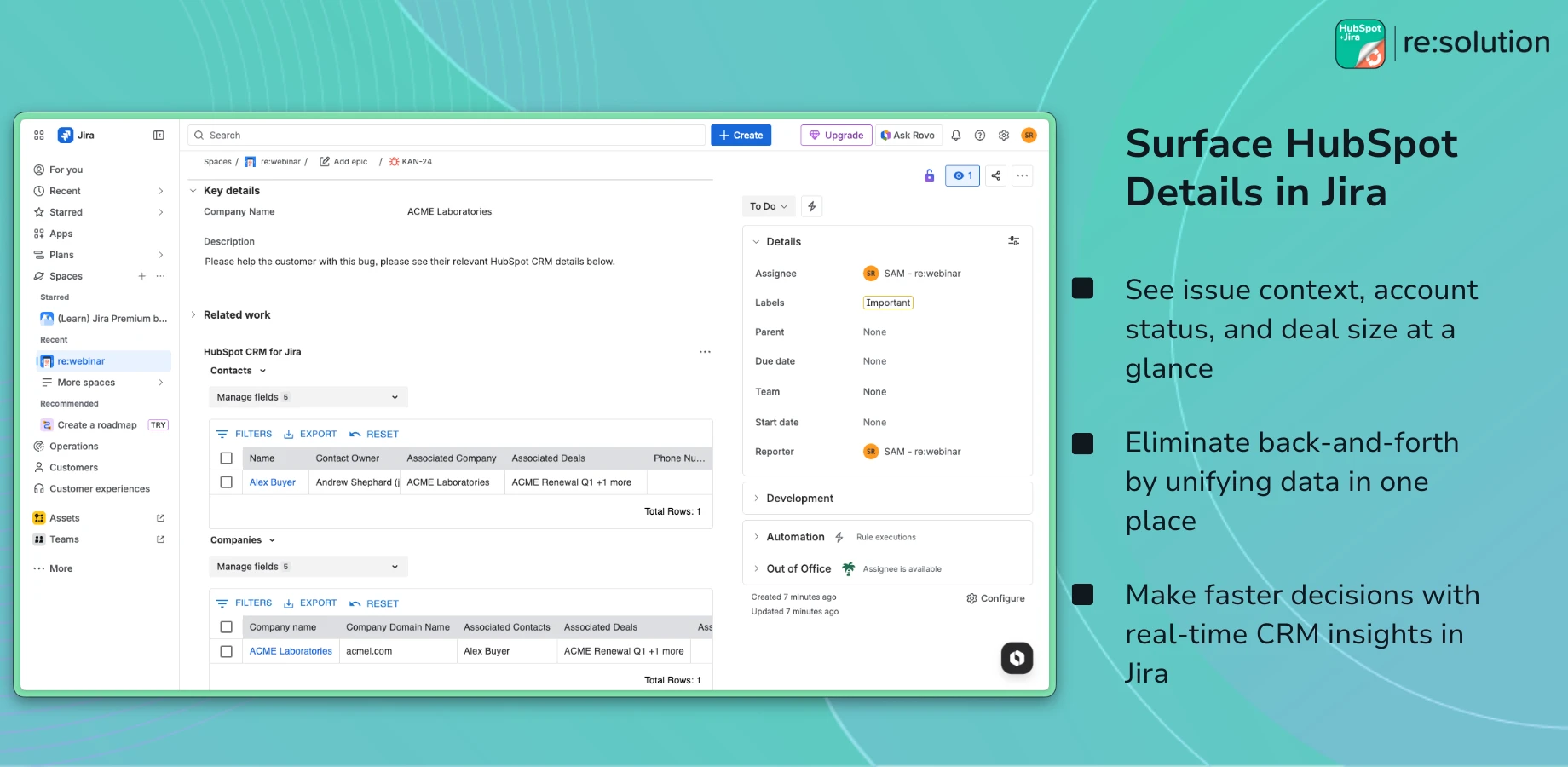
HubSpot for Jira is built by resolution Reichert Network Solutions GmbH, a Platinum Atlassian Marketplace Partner. The app keeps your Jira to HubSpot Automation in sync by linking issues to HubSpot records, pushing data both ways, automating object creation, and giving every team the context they need without leaving their tool. For support, you can reach the team at support@resolution.de.