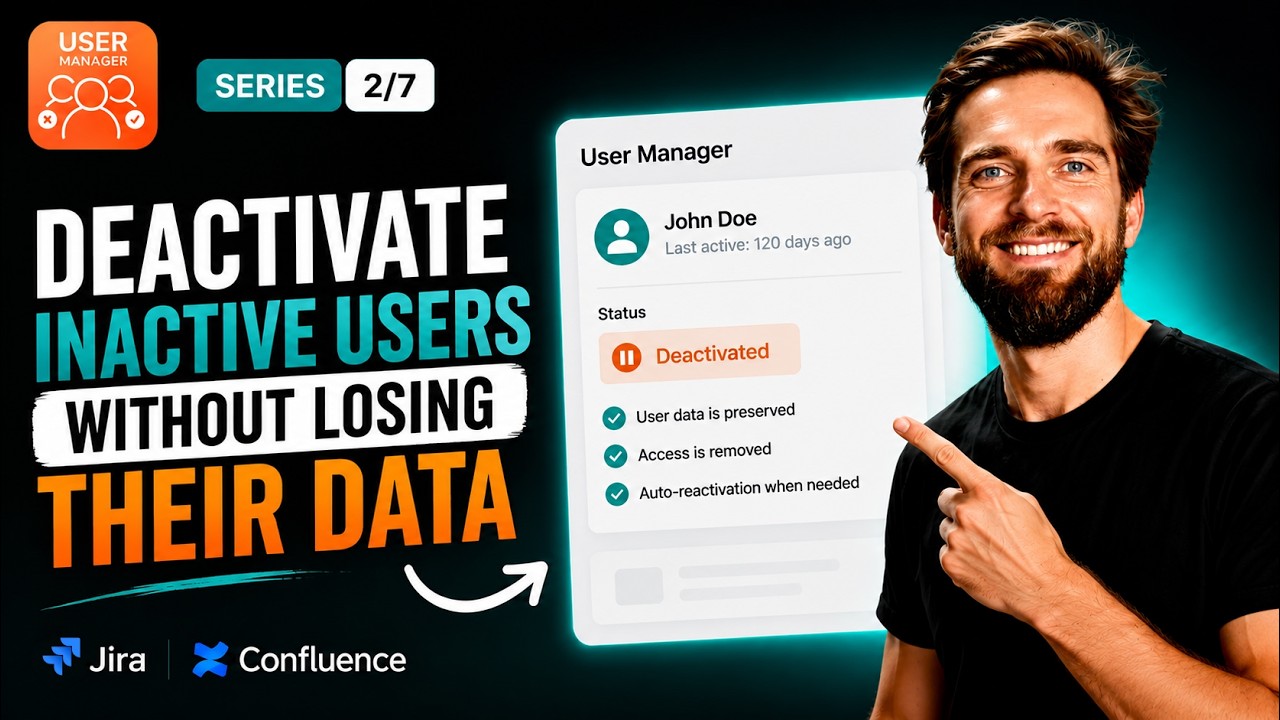
In our latest User Manager video, we walk through the exact steps to deactivate inactive users in Jira and Confluence – freeing up paid licenses immediately while preserving every piece of their work, comments, and history. By following this process, you can stop paying for idle seats today and rest assured that returning users regain access automatically through your approved domain settings.
This guide covers the critical distinction between suspending a user and removing app access, ensuring you choose the safe method that keeps the door open for users who may return.
Watch our full walkthrough in the video below:
What Happens When You Deactivate a User
When you deactivate a user in User Manager, you are removing their access to a product, which frees that paid license immediately. However, everything the user ever contributed stays exactly where it is. Their work items, their comments, their mentions, and their full history across Jira and Confluence remain completely untouched. You are reclaiming the seat, not erasing the person.
This is an important distinction to understand. Consider someone who switched teams or went on long-term leave. Their license has been sitting idle for months, quietly costing your organization money. By deactivating them, you put that license back into the pool where it can be used by someone who actually needs it – or simply reduce your bill.
Why Returning Users Are Not a Problem
One of the biggest concerns teams have about deactivating users is the hassle of reactivating them later. With User Manager and the right Atlassian configuration, this concern disappears entirely. If your organization uses approved domains with default product access, then when a deactivated user comes back and logs in, Atlassian re-grants their product access automatically.
Single sign-on handles the authentication, and your approved domain access settings hand back the seat. There is no support ticket to file, no manual reinvitation process, and absolutely no lost work. The user simply signs in and picks up right where they left off with full access restored.
Remove App Access vs. Suspend User
This is the one thing you need to get right, and it is the setting that people most commonly confuse. There are two distinct ways to switch a user off in Atlassian, and they behave very differently:
- Suspend User – This fully blocks the account. Bringing the user back requires a manual step. This option is best reserved for someone who has truly left the organization and will not be returning.
- Remove Product Access – This is the option we recommend for license optimization. It frees the license but leaves the door open so that a returning user gets their product access back automatically the moment they sign in. Single sign-on lets them in, and your approved domain settings restore the seat.
By choosing Remove Product Access, you achieve the cost savings of freeing the license without creating any administrative burden for yourself down the road. It is the safe, reversible approach to license cleanup.
Step-by-Step: How to Deactivate Inactive Users
Part One: Pick Your Targets
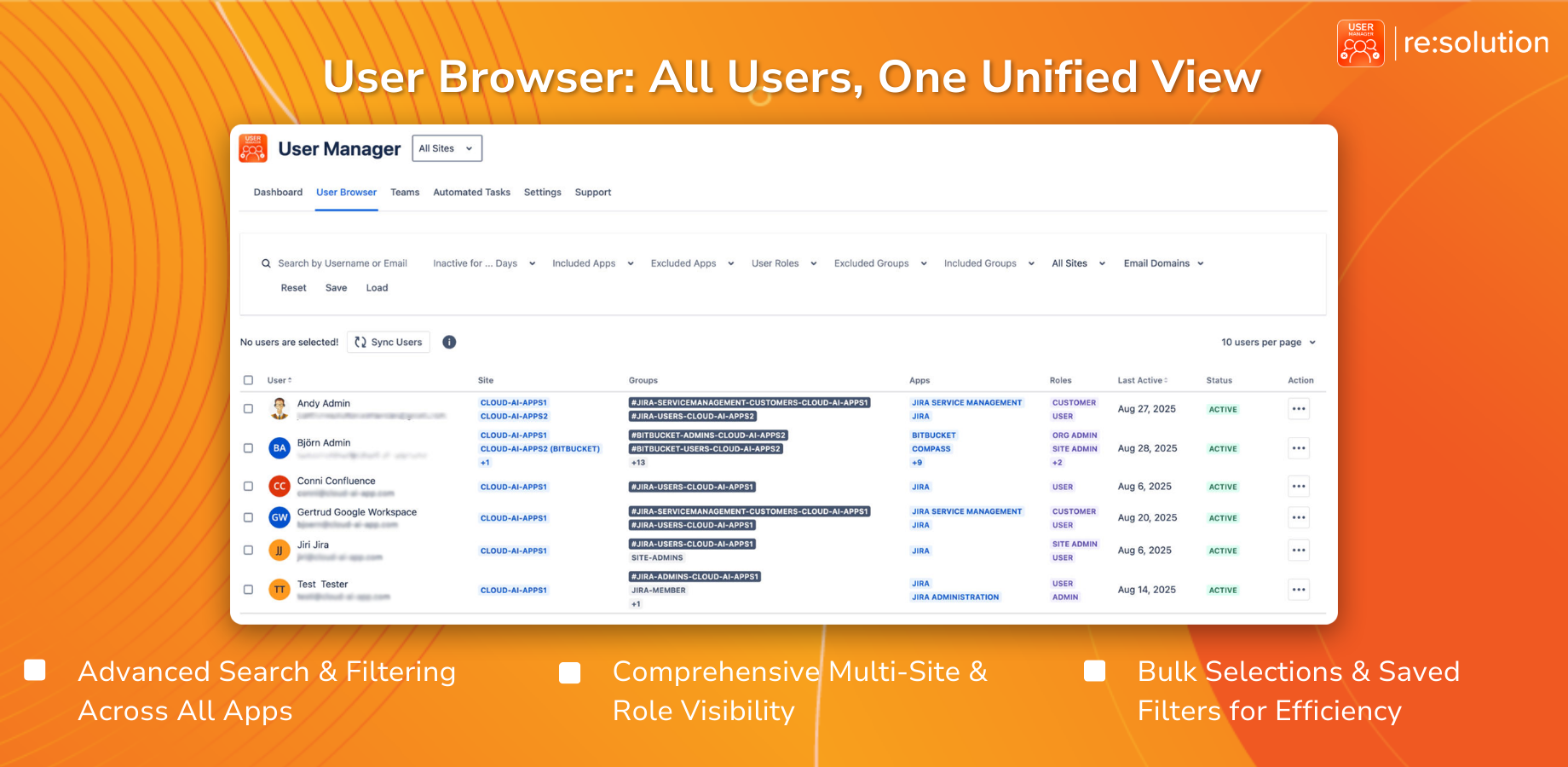
Start from the User Manager dashboard. You can either click “Show Inactive Users” directly from the dashboard or open the User Browser tab and set the “inactive for” filter to your preferred window – for example, 30 days. This gives you a clean, filterable list of every account that has gone quiet during that period.
Take the time to review the list carefully. Look for users who have switched teams, gone on leave, or simply stopped using the products. Once you are satisfied with your selection, tick the checkboxes next to the users you want to deactivate.
Part Two: Reclaim the Licenses
With your users selected, click Bulk Operations. From the available actions, pick “Remove App Access” and choose which products to pull them from – Jira, Confluence, or any other Atlassian products your organization runs. Confirm with “Apply” and User Manager processes the entire batch at once, handing those licenses straight back to your available pool.
The Bulk Results feature serves as your built-in audit trail. It gives you a clear record of exactly which users were deactivated, which products they were removed from, and when the action was taken. This is invaluable for compliance tracking and for answering any questions that arise later about license changes.
Key Benefits of This Approach
By following this process, you achieve three critical outcomes simultaneously:
- You free up paid licenses immediately, reducing costs starting today.
- Every bit of the user’s work, comments, mentions, and history stays fully intact across all products.
- Anyone who returns gets their product access re-granted automatically by your approved domain settings when they log back in – no manual intervention required.
This makes the entire deactivation process risk-free and fully reversible, which is exactly what you want when managing licenses at scale.