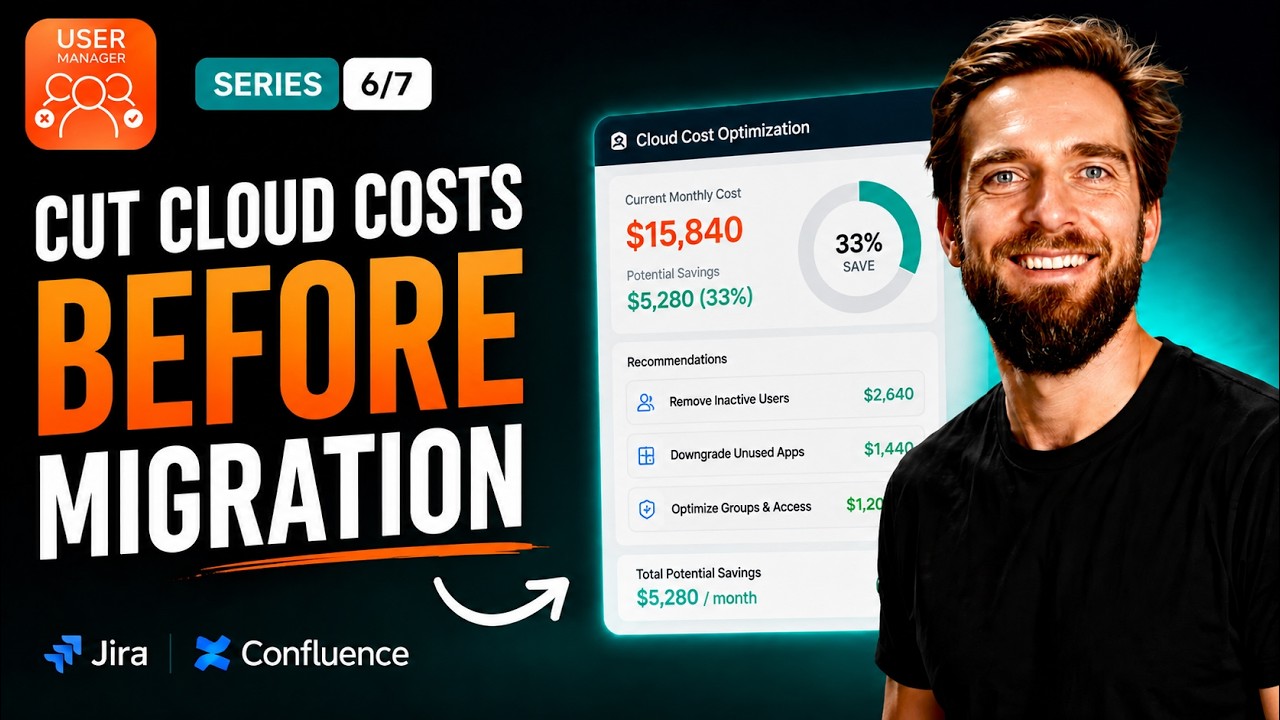
Migrating to Atlassian Cloud without cleaning up inactive accounts can silently push you into a higher, more expensive pricing tier than you actually need. In our latest video, we walk through exactly how to rightsize your cloud tier before migrating by identifying inactive users, deactivating them, and sizing your license based on real usage rather than inflated historical headcount.
This process ensures you arrive on Atlassian Cloud lean, compliant, and paying only for the users who genuinely need access.
Watch the full walkthrough in our video:
The Expensive Trap Hiding in Your Atlassian Cloud Migration
Atlassian Cloud is priced in tiers, and your tier is determined by your user count. This sounds straightforward, but it creates a costly problem for organizations migrating from Data Center. If you migrate with years of inactive accounts still on the books, all that dead weight crosses over with you. Those ghost users – people who left the company months or even years ago – can push you into a higher tier than your actual usage warrants. You would literally be paying for years for people who are long gone.
With Atlassian winding down Data Center, migrations are on virtually every admin’s road map. This makes rightsizing your user base one of the most important pre-migration tasks you can undertake. The fix is simple in principle: clean up first, migrate second.
What Rightsizing Actually Means
Rightsizing means matching your license tier to your real, current usage – not your inflated historical headcount. Think of it as finding the true waterline of your user base before you pour it into a new container. If your organization has 1,200 licensed users but only 850 are genuinely active, you should be sizing your cloud plan for 850, not 1,200.
Let’s put real numbers on this. Imagine an organization with 1,200 licensed users, of which only 850 are actually active. If they migrate as-is, they need to size their cloud plan for 1,200 users, landing on a higher pricing tier. But if they deactivate the 350 inactive users first, they migrate a true count of 850 and land on a smaller, less expensive tier. Same migration, same tools, same data – but a dramatically smaller bill.
Part One: Find Your True Number
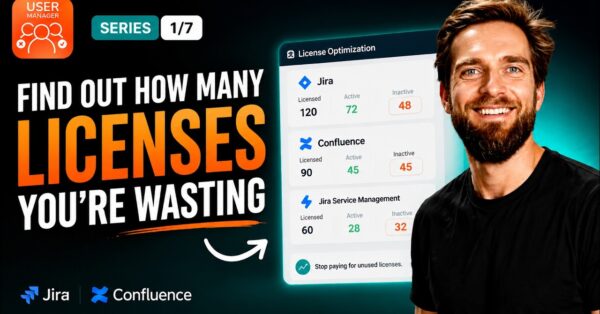
The first step is identifying how many users are genuinely active across your Atlassian Cloud products. Using the License Optimizer in User Manager, open the dashboard to see your licensed users versus your genuinely active ones on a per-product basis. This gives you an immediate, visual understanding of the gap between your total licensed count and your real usage.
Setting the Right Inactivity Window
Next, head to the User Browser and configure the inactivity window. Start by setting it to a broader period, such as 30 days of inactivity, and then tighten the threshold gradually. The goal is to surface every user who has been inactive beyond your chosen cutoff while finding the sweet spot between freeing up licenses and keeping access for anyone who is a genuinely occasional user.
This step requires some judgment. A user who logs in once a quarter for reporting purposes is different from someone who hasn’t touched the system in 18 months. By adjusting the inactivity window, you can make informed decisions about where to draw the line. The User Browser makes it straightforward to filter and identify these users so you can review them before taking action.
Part Two: Clean Up Then Size
Once you have identified your inactive users, the next step is to deactivate them. This frees their seats and leaves you with an accurate, defensible active user count. That cleaned-up number is what you size your cloud tier on – not the bloated figure you started with.
Migrate Your Clean User Base
With your user list trimmed to only active accounts, proceed with your migration. You will land on the appropriate cloud tier from day one, without paying for seats nobody is using. After the migration is complete, install User Manager on the cloud side and keep the same optimization practices running. This prevents your user count from gradually drifting back into bloat over time as new accounts accumulate and people change roles or leave the organization.
This ongoing optimization is critical. Without it, you risk finding yourself in the same situation six months or a year after migration – paying for a tier inflated by inactive accounts that have accumulated again. Continuous license hygiene ensures your cloud investment stays aligned with actual usage.
Why This Matters for Every Atlassian Cloud Admin
The difference between tiers in Atlassian Cloud pricing can be significant. Crossing a tier boundary – say, from a 500-user tier to a 1,000-user tier – doesn’t just add a small incremental cost. It can represent a substantial jump in annual spend. By rightsizing before migration, you avoid locking yourself into that higher tier for the duration of your cloud subscription.
This approach is also about compliance and defensibility. When you can demonstrate that your user count reflects genuine, active usage, you have a clear audit trail and a justifiable license position. This is especially important for organizations with procurement or governance requirements around software spending.
Keeping Your Atlassian Cloud Instance Optimized
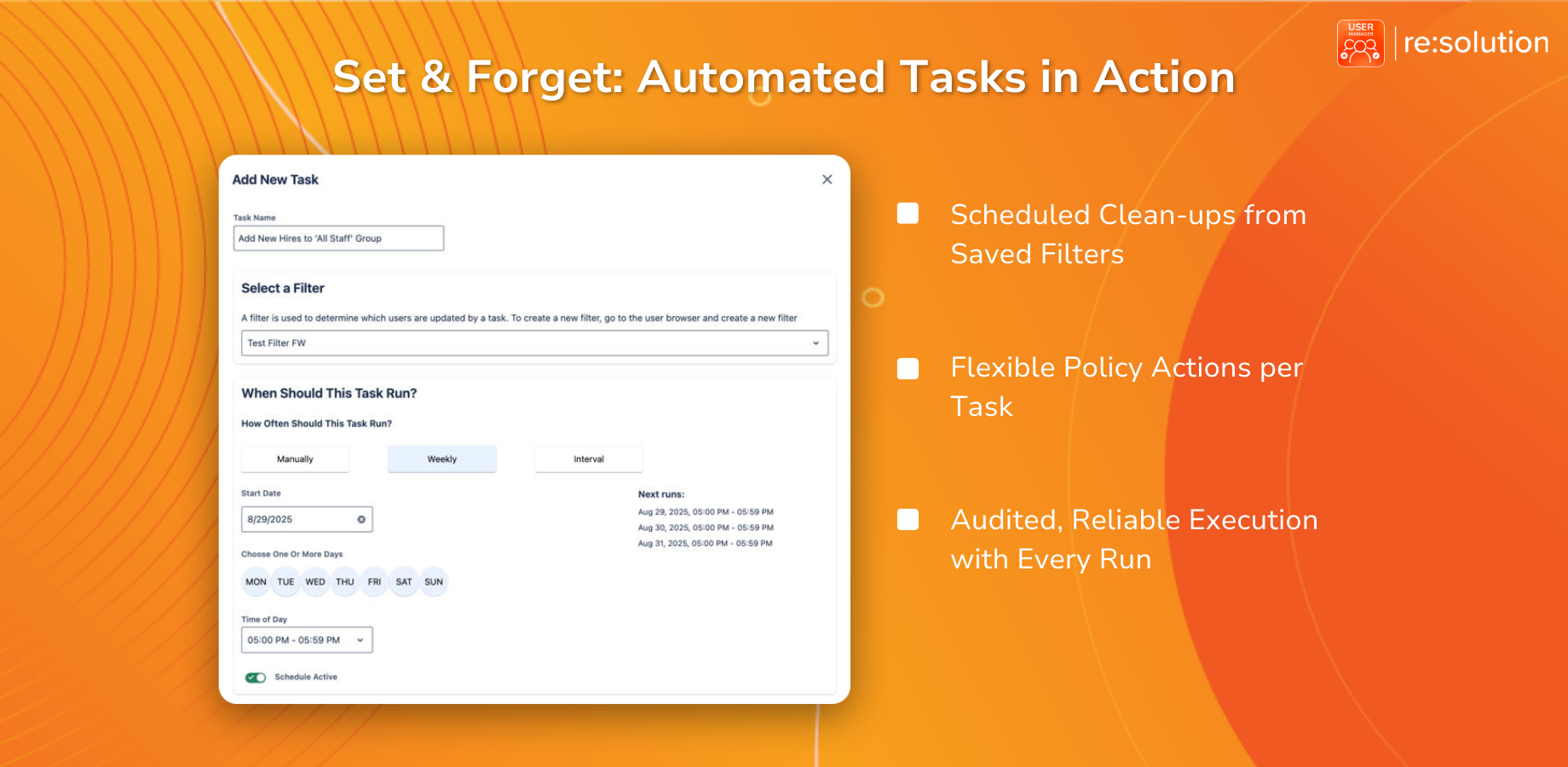
Arriving on cloud with a clean user base is only half the battle. The key to long-term savings is maintaining that discipline. User Manager provides the tools to continuously monitor your licensed users versus active users, so you can catch drift early and deactivate accounts before they push you toward a tier upgrade.
In the next and final video of our User Manager series, we will look at a focused approach to saving even more: optimizing licenses product by product to dodge expensive tier upgrades. This granular, per-product strategy builds on the foundation covered here and can unlock additional savings beyond the initial cleanup.
Resources to Get Started
To begin rightsizing your Atlassian Cloud instance before migration, you can get User Manager from the Atlassian Marketplace. The app serves as a License Optimizer and user management tool for both Jira and Confluence, giving you visibility into who is really using your licenses across every product and site. From one console, you can reclaim unused seats, automate cleanup, and stay compliant.
For setup guidance, consult the documentation on how to configure the User Manager and License Optimizer. And if you want to follow the complete series and catch the upcoming final episode on per-product license optimization, make sure to subscribe to the channel so you don’t miss it.