
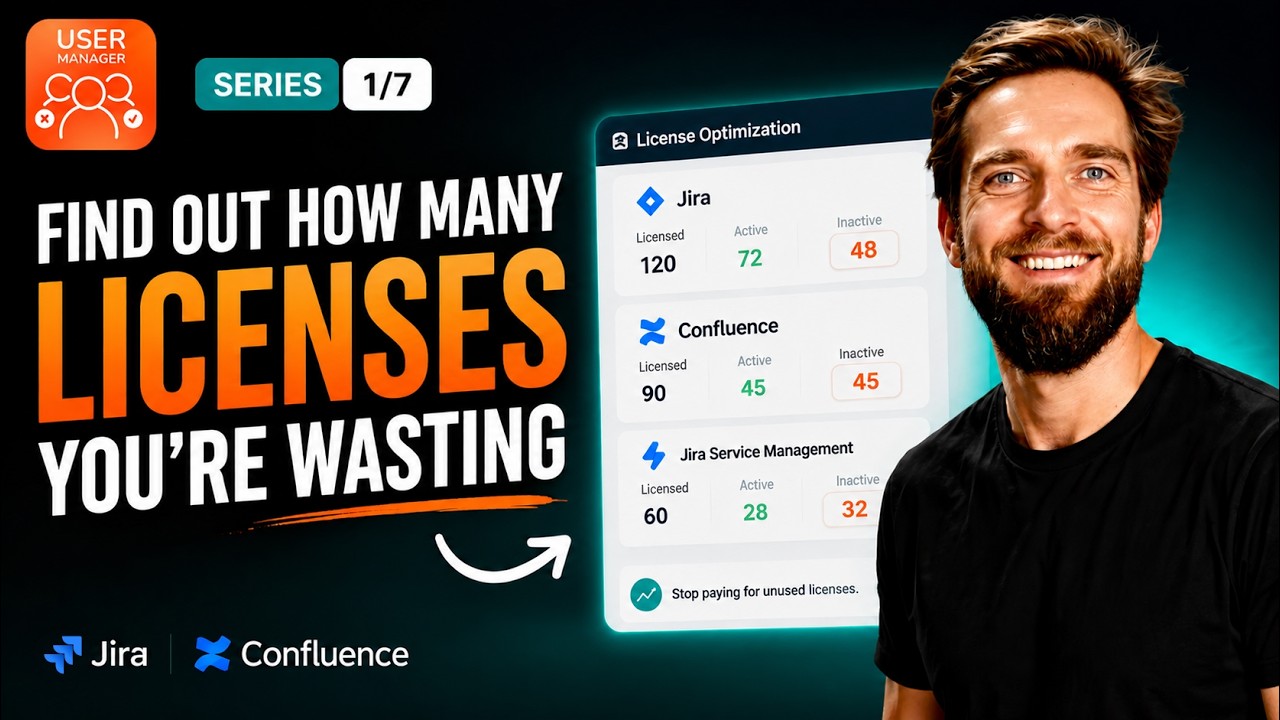
User Manager’s A License Optimization Dashboard gives Atlassian admins a single screen to see exactly how many Jira, Confluence, Bitbucket, and other Atlassian licenses are actively used versus sitting idle – turning guesswork into actionable savings opportunities. In this article, we walk through how to read the dashboard, interpret the key metrics, and identify inactive users so you can rightsize your licenses before your next renewal.
By understanding the gap between licensed and active users, you can reclaim unused seats and avoid paying for a higher, pricier license tier than you actually need.
In our video, we provide a complete walkthrough of the License Optimization Dashboard and show you how to spot your Atlassian license savings opportunity in minutes:
What Is the Atlassian License Optimization Dashboard?
The License Optimization Dashboard is a core feature of User Manager, the license optimizer for Jira and Confluence. In plain terms, it shows you who is really using your Atlassian licenses across every product and every site – all from one consolidated view. Whether you’re managing Jira, Jira Service Management, Confluence, Bitbucket, Compass, or other Atlassian licenses, the dashboard surfaces usage data for each one. For every product, you can see how many users are licensed, how many are active, and how many have gone quiet. No spreadsheets and no guessing required.
Why It Matters for Atlassian Admins
Picture an admin just before they need to renew their Atlassian licenses. There’s a nagging feeling that the organization is paying for people who have left or stopped using the tools, but there’s no proof. The License Optimization Dashboard turns that feeling into a concrete number. For example, out of nine licensed users, you might discover that only four are actually active. The rest are quietly costing money every single month.
The keyword in the dashboard’s name is optimization – not just counting. The dashboard is specifically designed to help you rightsize your Atlassian licenses and surface inactive accounts before they push you into a higher, pricier licensing tier. The philosophy is simple: visibility first, savings second. Once you can see the problem clearly, you can act on it with confidence.
Part One: The Multi-Site Overview
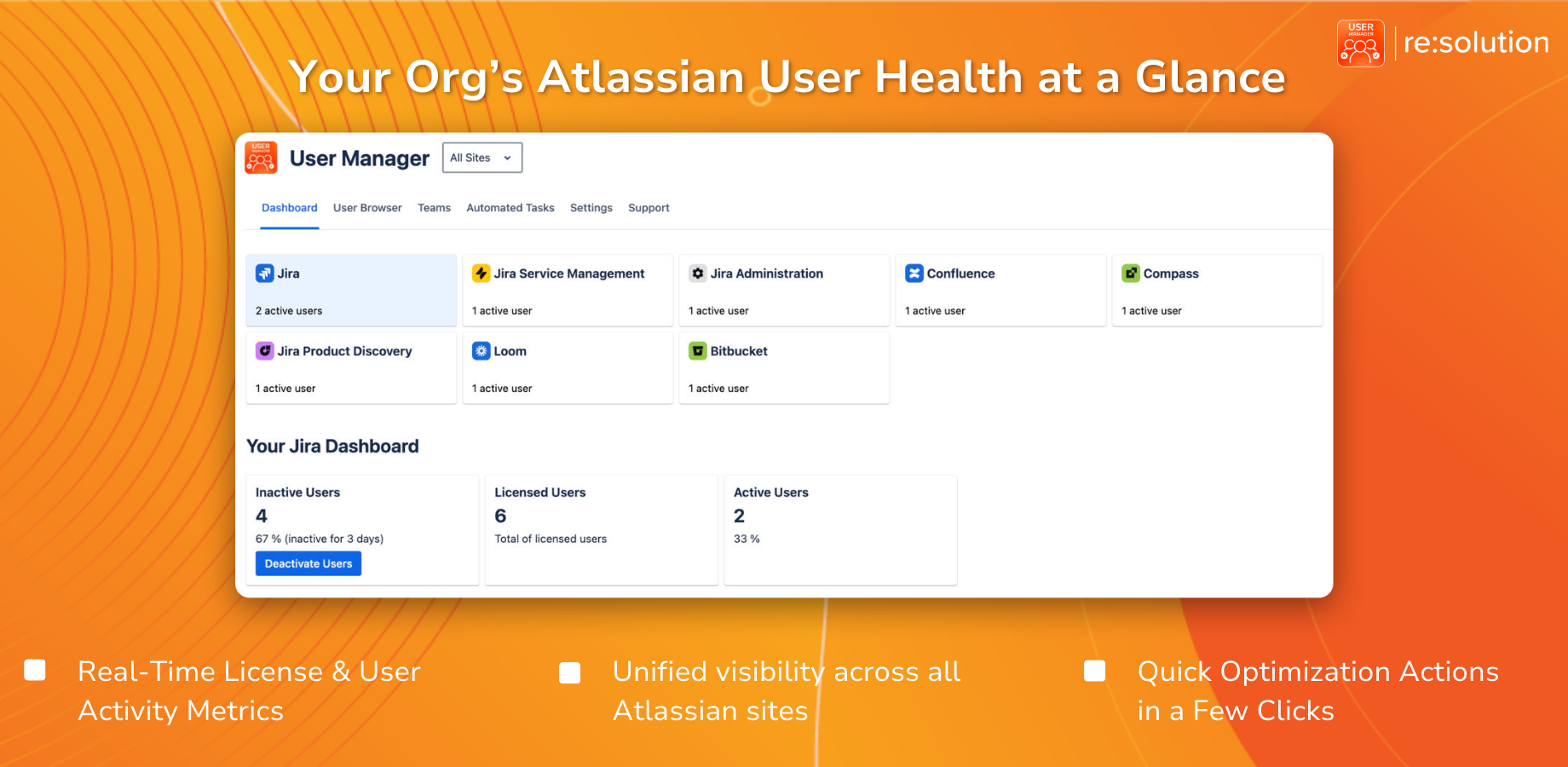
To get started, open User Manager from the apps menu in Jira. You’ll land directly on the dashboard tab. At the very top of the screen, you’ll find the all sites selector. This is a critical feature for organizations managing multiple Atlassian sites.
- All Sites view: Leave the selector on “All Sites” to see usage data across every connected site at once.
- Single site view: Pick a specific site to drill down into its individual license usage.
Below the site selector, every connected Atlassian product appears as its own card. Jira, Confluence, Bitbucket, and the rest each display their active user count. Think of this as your bird’s eye view of where Atlassian licenses are actually being consumed. At a glance, you can tell which products have high engagement and which ones might be carrying a significant number of unused licenses.
Part Two: The Numbers That Matter
Scrolling further into the dashboard, you’ll reach the “Your Jira Dashboard” summary section. This is where the real insights live. The summary presents three key figures side by side:
- Licensed Users: This is the total count of everyone currently consuming a license. It represents your billing baseline – the number you’re paying for.
- Active Users: These are the users who are genuinely using the product within a defined time window. The dashboard also shows their percentage relative to the total licensed count, giving you an immediate sense of utilization.
- Inactive Users: These are the accounts that have gone quiet beyond your chosen activity window – for example, 30 days. These users still hold a license, but they aren’t doing anything with it.
The gap between your licensed users and active users is your savings opportunity. This is the number that represents money you could potentially reclaim by deactivating or removing users who no longer need access.
Jumping to the Inactive User List
One of the most practical features of the dashboard is the “Show Inactive Users” button. Clicking it takes you directly to a filtered list of all inactive users, ready for your next step. There’s no need to manually cross-reference spreadsheets or dig through user administration pages. The dashboard puts the actionable list right at your fingertips, making it straightforward to identify which accounts should be reviewed for deactivation.
What the Dashboard Covers
The Atlassian License Optimization Dashboard provides visibility across a broad range of Atlassian products. In our video, we highlight coverage for:
- Jira
- Jira Service Management
- Confluence
- Bitbucket
- Compass
- And additional connected Atlassian products
Each product gets its own card with independent usage metrics, so you can evaluate license utilization on a per-product basis. This is especially valuable for organizations where different teams use different tools – you might find Jira is well-utilized while Confluence has a significant number of dormant accounts.
About User Manager
User Manager by resolution is a license optimizer and user management app built for Jira and Confluence. It lets you see who is really using your Atlassian licenses across every product and site, reclaim unused seats, automate cleanup, and stay compliant – all from one console. You can get User Manager on the Atlassian Marketplace and learn more about setting it up through the resolution documentation.
What Comes Next in the Series
The License Optimization Dashboard gives you the visibility you need – one screen, every product, every site, with a clear breakdown of licensed versus active versus inactive users. Now you know exactly what you’re paying for. In upcoming episodes of the User Manager series, we cover how to deactivate those inactive users to free up licenses without losing any of their data. The gap between licensed and active users is money you can reclaim, and the next steps in the series show you exactly how to do it.