

Most Atlassian admins meet Atlassian Guard as a security purchase: single sign-on, enforced authentication policies, an audit trail that keeps the compliance team happy. It is all of that. It is also, far less obviously, the switch that decides how fresh your user data is at the moment you run a bulk operation. Since version 4.5.0, User Management and License Optimizer can read your organization’s Atlassian Guard audit log and apply user, group and role changes roughly every five minutes instead of once a day.
This guide covers what Atlassian Guard actually is, which edition you need, what continuous sync changes for day to day administration, and the honest limits of both options. If you are wiring up identity provisioning rather than sync, our guide to syncing Entra ID to Atlassian Guard without breaking logins covers that side of the house.
Quick answer: Atlassian Guard is Atlassian’s cloud security subscription, and its organization audit log is what enables continuous sync in User Manager. With Guard enabled, user, group and role changes are detected roughly every 5 minutes and applied automatically. Without it, sync runs once a day.
- What Atlassian Guard actually is
- The audit log is the part that matters for user management
- Daily sync vs continuous sync via Atlassian Guard
- How to switch on continuous sync
- What Atlassian Guard does not fix
- Atlassian Guard FAQ
What Atlassian Guard actually is
Atlassian Guard is the subscription that adds organization-wide security and identity controls on top of your Atlassian Cloud products. It is bought per user at the organization level, not per product, which is why it tends to be evaluated by a security lead rather than by whoever administers Jira.
It comes in two tiers, and the second is an add-on to the first rather than an alternative to it.
Atlassian Guard Standard
Atlassian documents Guard Standard as providing “single sign-on, user provisioning, user API token management, data security controls, and more”. This is the tier most organizations mean when they say they have Guard, and it is where the organization audit log lives.
Atlassian Guard Premium
Guard Premium sits on top of Standard and adds “data classification, sensitive data detection, threat detection, and extended audit logs”. The extended logging is the relevant part for security teams who want to stream events into their own tooling, but it is not what continuous sync depends on.
| Capability | Guard Standard | Guard Premium |
|---|---|---|
| Single sign-on and enforced authentication policies | Yes | Yes |
| User provisioning and API token management | Yes | Yes |
| Organization audit log (admin activity) | Yes | Yes |
| Data classification and sensitive data detection | No | Yes |
| Threat detection and extended audit logs | No | Yes |
| Audit log API and event streaming to third-party tools | No | Yes |
The security features are the headline, and for most buyers they are the whole justification. The audit log is usually treated as a compliance artefact: something you go and read after an incident. That is the part worth reconsidering.
The audit log is the part that matters for user management
The organization audit log records what administrators and users did, and when. Atlassian describes it as tracking organization admin activity, app admin activity, and user-created activity, covering things like user details, app access, user accounts and organization settings.
Read that list again with a licensing hat on. Somebody being added to a group, granted product access, given a new role or deactivated entirely is not only a security event. It is the exact moment your license count changes. The audit log is therefore a live feed of every change that a user management tool would otherwise have to go looking for.
That is precisely what User Manager does with it. Rather than re-reading your whole directory on a schedule and hoping nothing moved in between, it watches the Guard audit log for changes to users, groups and roles, and applies them to its own synchronized copy of your user data as they happen.
Daily sync vs continuous sync via Atlassian Guard
User Manager keeps a mirror of your user data so that filtering and bulk operations across thousands of accounts stay fast. That mirror has to be refreshed somehow, and until 4.5.0 there was one automatic answer: a full sync, once a day, at an off-peak hour of your choosing.
Daily sync works. It also has a shape that anyone running a large organization will recognise. A full sync of a 1,000+ user organization can take several hours, you are advised not to schedule automated tasks inside that window, and any change made after the sync completes is invisible to the app until tomorrow. Offboard someone at 09:05 and your evening cleanup task is still working from a picture taken before they left.
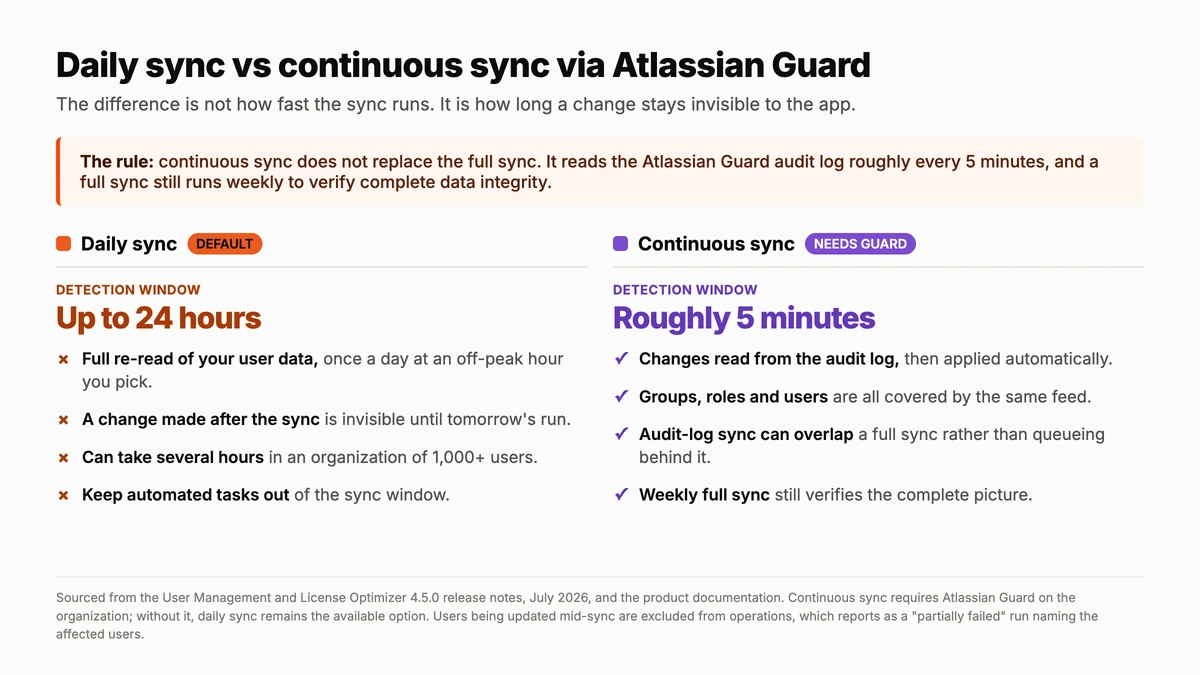
| Daily sync | Continuous sync via Atlassian Guard | |
|---|---|---|
| How changes are found | Full re-read of your user data | Organization audit log, plus a weekly full sync |
| Detection window | Up to 24 hours | Roughly 5 minutes |
| Runs alongside a full sync | Not applicable | Yes, audit-log sync and full sync can overlap |
| Scheduling constraint | Avoid running tasks inside the sync window | Weekly full sync only |
| Requires Atlassian Guard | No | Yes |
The weekly full sync is the detail that makes this trustworthy rather than clever. An audit log tells you what changed, which is fast but only as complete as the log itself. A full read tells you what is true. Keeping both means the fast path handles the day to day while a slower, complete pass still verifies the whole picture every week.
Act on user data that is minutes old, not a day old
User Management and License Optimizer filters users across every site in your Atlassian organization, reclaims idle seats on a schedule, and logs every run for audit. With Guard enabled it works from a picture that is roughly five minutes old.
How to switch on continuous sync
There is no migration and no data rebuild. The mirror you already have keeps working, and the way it is refreshed changes underneath it.
- Confirm Atlassian Guard is enabled on the organization. If it is not, the continuous option is simply not offered and daily sync remains your available choice.
- Open Settings in User Manager and find the sync mode option.
- Switch from Daily to Continuous. From that point changes to groups, roles and users are picked up from the Guard audit log approximately every five minutes and applied automatically.
- Leave the weekly full sync alone. It runs on its own to verify complete data integrity, and it is the safety net under the fast path.
- Revisit your automated task schedules. The advice to keep tasks out of the daily sync window was written for daily sync. Once you are on continuous, the only heavy window left is the weekly one.
Two behaviours are worth understanding before you switch, because they change what a task result means. Users who are mid-update when an operation runs are deliberately excluded from it, so that nothing acts on unsettled data. Users you selected explicitly are never skipped. When an operation does skip somebody, it finishes with a partially failed status and reports exactly which users were affected, which is a report to read rather than an error to panic about. If you want the deeper version of this, we wrote a whole post on knowing when user data is up to date before you run bulk operations.
For scale, resolution reports that bulk group membership and role changes have been tested at up to 5,000 users. The full detail lives in the 4.5.0 release notes, which also cover a smaller but welcome change: filter the User Browser to a single app and the Last Active column now names it, so the header reads “Last Active (Jira)” rather than the organization-wide figure.
What Atlassian Guard does not fix
Continuous sync solves a freshness problem. It does not solve the other problems, and it is worth being clear about which is which before anybody builds a business case on it.
- It is not a reason to buy Atlassian Guard on its own. Guard is priced as a security product. Faster sync is a genuine operational benefit for organizations that already have it, or that were already close to buying it for SSO and audit. It is not the argument that carries the purchase.
- Without Atlassian Guard, nothing degrades. Daily sync is not a broken fallback, it is the default and it works. You lose the five minute window, not the functionality.
- Bulk operations still cannot be automatically undone. Fresher data makes a bad bulk action more accurate, not more reversible. Test on a small group, and keep the downloadable JSON results.
- SCIM-provisioned groups remain read-only. If your identity provider owns a group, changes have to happen there regardless of sync mode.
- Group creation is still done in admin.atlassian.com. User Manager adds and removes members of groups that already exist.
- There are no granular in-app permissions yet. Anyone granted access to the app gets full organization-wide capability, so treat that access list as seriously as you treat Org Admin.
The one safeguard that does not depend on any of this: Organization Administrators are automatically excluded from every automated task action, and that cannot be overridden. It is the reason scheduled cleanup is safe to leave running at all, whichever sync mode you are on.
If you are still deciding between modes, our older walkthrough of User Manager sync options covers the manual and on-demand syncs that sit alongside the scheduled ones, and the product overview has the full feature picture.
Atlassian Guard FAQ
What is Atlassian Guard?
Atlassian Guard is Atlassian’s organization-level security subscription for Cloud. Guard Standard covers single sign-on, user provisioning, API token management and data security controls. Guard Premium is an add-on that adds data classification, sensitive data detection, threat detection and extended audit logs.
Do I need Atlassian Guard to use continuous sync?
Yes. Continuous sync reads your organization’s Atlassian Guard audit log, so Guard has to be enabled on the organization. Without it the option is not offered and daily sync remains available, which is the default behaviour and works perfectly well.
How often does continuous sync detect changes?
Changes to groups, roles and users are picked up from the audit log approximately every five minutes and applied automatically. A full sync still runs weekly to verify complete data integrity, and the audit-log sync can run at the same time as a full sync.
Does continuous sync need Atlassian Guard Standard or Premium?
The requirement documented for User Manager 4.5.0 is that Atlassian Guard is enabled on the organization, without naming an edition. The changes it reads are administrative activity rather than user content activity, which the organization audit log covers. Confirm your specific edition with Atlassian or resolution support before planning a rollout.
Why did my automated task finish as partially failed?
Usually because it skipped users who were being updated by a sync at that moment, which is deliberate: acting on unsettled data is worse than deferring. The run reports which users were affected. Users you selected explicitly are never skipped.
Related reading
- User Manager sync options explained: which one should you use?
- Sync Entra ID to Atlassian Guard without breaking logins
- Atlassian Cloud groups: hidden risks costing you time and money
- Automate Atlassian license cleanup with scheduled tasks
Already running Atlassian Guard? Switching to continuous sync takes one setting. Start a free trial of User Management and License Optimizer on the Atlassian Marketplace.
