

A support agent logs a customer request in Jira Service Management, works it, resolves it, and then opens a second browser tab to record what happened in the CRM. The account team never sees the request. The health score the agent assigned lives in one system, and the customer record it describes lives in another. Linking Jira Service Management and HubSpot tickets properly means the request itself carries the customer, and the score the agent enters becomes a CRM ticket without anyone retyping it. That is what HubSpot for Jira is for.
This guide walks through a real customer pattern: two automation rules, two different triggers. The first fires when the request is created and links the company, contact and deal. The second fires when an agent fills in a health score, and creates a HubSpot ticket carrying that score. It covers the exact rule names, which identifier property each object needs, the duplicate trap that catches people on the second trigger, and the one thing this workflow genuinely cannot do.
Quick answer: Connect Jira Service Management and HubSpot tickets with two automation rules. On request creation, use Find HubSpot Object and Link to attach the contact, company and deal. When the agent sets a health score, use Link or Create and Link HubSpot Object to create a HubSpot ticket carrying that score, and link it to the request.
On this page
- Why the health score never reaches the account team
- How Jira Service Management and HubSpot tickets fit together
- Trigger one: link the customer when the request is created
- Trigger two: create the HubSpot ticket when the score is set
- The duplicate HubSpot ticket trap, and how to avoid it
- What this workflow will not do
- Setup checklist for the Jira admin
- Jira Service Management and HubSpot tickets FAQ
Why the health score never reaches the account team
Service desks are good at capturing what went wrong. They are much worse at capturing what it means. An agent can tell you that this customer has raised four connectivity requests this month and that their patience is thin, and they will often record exactly that in a health score field on the request. The account manager, working in HubSpot, sees none of it.
The usual workaround is a human. Someone reads the queue, decides which requests matter commercially, and re-enters a summary in the CRM. It works until the volume grows or the person goes on holiday. Every manual hop is also a chance to lose the link between the request and the customer record it belongs to.
The fix is to treat the two moments as separate events, because they are. The customer identity is known the instant the request arrives. The health score is not known until an agent has looked at the request. Trying to do both at once is the mistake that makes this workflow feel impossible.
How Jira Service Management and HubSpot tickets fit together
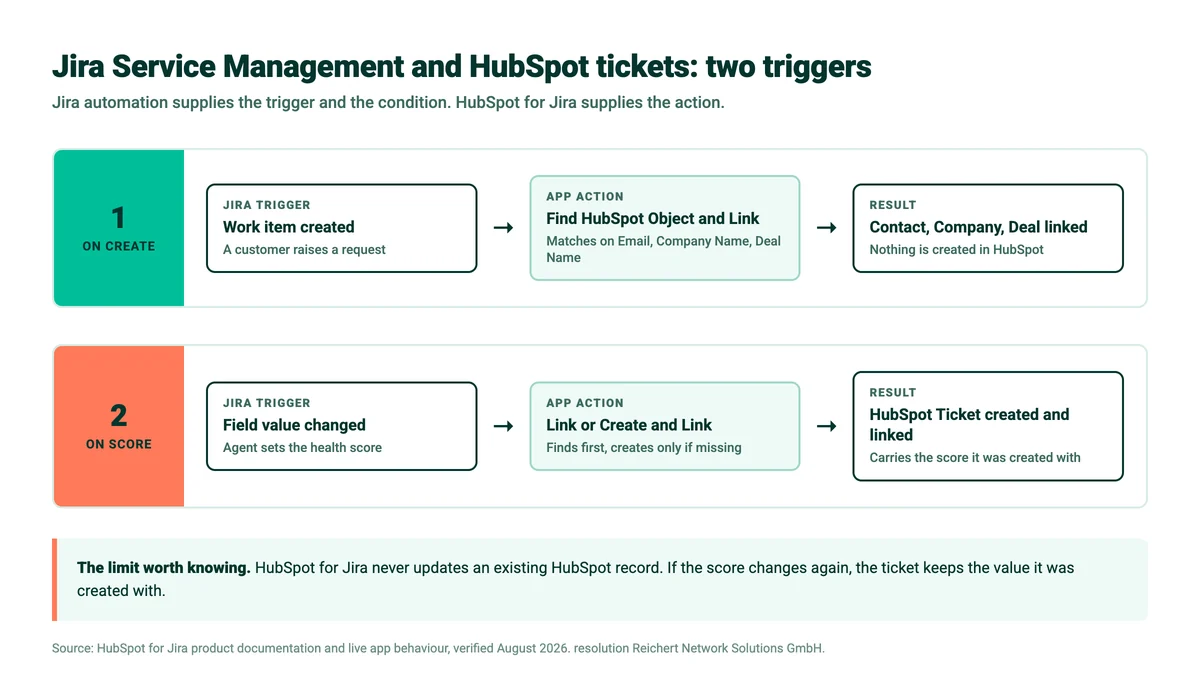
Two rules, two triggers, four HubSpot object types. Jira automation, now branded Flows, supplies the triggers and conditions. HubSpot for Jira supplies the actions, which appear in the automation builder as HubSpot CRM for Jira - <action>.
| Stage | Jira trigger | App action | Result in HubSpot |
|---|---|---|---|
| Request arrives | Work item created | Find HubSpot Object and Link | Contact, company and deal attached to the request. Nothing created |
| Agent scores it | Field value changed, on the health score field | Link or Create and Link HubSpot Object | A HubSpot ticket carrying the score, linked to the request |
The split matters. The first rule should never create anything, because a known customer already exists in the CRM and creating a second contact record is worse than doing nothing. The second rule does need to create, because the ticket it produces did not exist before the agent made a judgement.
Trigger one: link the customer when the request is created
Build this rule with the trigger Work item created, scoped to your service space, then add one Find HubSpot Object and Link action per object type. Each action needs the identifier property that HubSpot for Jira matches on, and they are not the same across object types:
| Object type | Identifier property | Where the value comes from on a JSM request |
|---|---|---|
| Contact | The reporter’s email address | |
| Company | Company Name | An organization field or a request field |
| Deal | Deal Name | A custom field on the request. This is the awkward one |
| Ticket | Ticket Name | Built in rule two, see below |
Contact is easy, because a JSM reporter already has an email address and Jira automation exposes it as a smart value. Company is usually straightforward if you use JSM organizations. Deal is the honest problem: HubSpot matches deals on Deal Name, and a service desk request does not naturally know which deal it relates to. You have two workable options, and both are a design decision rather than a setting:
- Carry the deal name on the request. Add a field to the request form, or populate it from the customer’s organization. Reliable, but someone has to maintain it.
- Skip the deal on rule one. Link contact and company automatically, and let agents attach the right deal by hand from the work item panel when it matters. Less complete, far less brittle.
The per-rule mechanics of finding and linking are covered step by step in our guide to finding and linking HubSpot CRM objects in Jira automatically, so this post does not repeat them.
Put the CRM inside the request
Contacts, companies, deals and tickets in the work item, and six automation actions in both directions. Free for up to 10 Jira users.
Trigger two: create the HubSpot ticket when the score is set
The second rule waits for a human judgement. Use the trigger Field value changed pointed at your health score field, then add a condition so the rule only continues for the scores you care about. A rule that fires on every score turns your CRM into a copy of your queue, which is not the goal.
Your health score field needs to be a type the app can map. HubSpot for Jira supports Number, Select List (single and multi), Radio Buttons, Short text and Checkboxes on the Jira side, which covers every sensible way of modelling a score. A Number field maps cleanly to a HubSpot Number property, and a Select List maps to a Dropdown select.
The object you are creating is a standard HubSpot ticket, so it behaves like any other ticket in the CRM once it exists. For the action, reach for Link or Create and Link HubSpot Object rather than the plainer Create New HubSpot Object. It finds a matching ticket first and only creates one if nothing is found, then links whatever it ends up with. That single choice is what stops the rule producing a pile of near-identical tickets, and the reason is in the next section.
Field mapping lives inside the rule, not in a separate wizard and not in the permissions tabs. Map Ticket Name, which is the identifier, plus the health score itself and whatever context the account team needs: the request key, the summary, the reporter. Give Ticket Name a deterministic shape, something like the request key followed by the customer name, so that the same request always resolves to the same ticket.
Rules are created paused. Building the rule is not the same as switching it on, and a rule that never fired is the single most common support question on this app. Activate it in HubSpot CRM Configuration, on the Automation tab. The first rule you run on a site also prompts a one-time Connect step.
The duplicate HubSpot ticket trap, and how to avoid it
A health score is not entered once. An agent sets it to 40, the customer escalates, someone drops it to 20, and the request is re-scored again after the fix. Field value changed fires every single time. With a plain create action, that is three HubSpot tickets for one request.
Three defences, and it is worth using all three:
- Use Link or Create and Link. It looks for a ticket matching your Ticket Name first, so a re-score finds the existing ticket instead of making another one. This is exactly the case the action was designed for.
- Make Ticket Name deterministic. If the name contains the score, every re-score produces a different name and the find step can never match. Build it from the request key, not from anything that changes.
- Add a condition on the score. Only continue when the score crosses the threshold that actually deserves account-team attention, so a HubSpot ticket is only raised when it earns one.
Check your work on the Audit Log, on the same Automation tab. It records date and time, rule name, rule type, rule action, trigger ID and status, with date filters. It does not refresh by itself, so reload it after a test run.
What this workflow will not do
Here is the limitation that decides whether this design fits your process, and it is better to know it now than after you have built it. HubSpot for Jira never updates an existing HubSpot record. Jira to HubSpot is create-only. Records shown inside a Jira work item are read-only. Jira Service Management and HubSpot tickets end up linked to each other, but that link is not a live channel for later changes.
Concretely, for this workflow:
- When the health score changes after the HubSpot ticket exists, the ticket keeps the score it was created with. The new value does not flow into it.
- Resolving the JSM request does not close the HubSpot ticket, and reopening it does not reopen the HubSpot ticket either.
- Agents cannot edit HubSpot properties from the request. They can read them, link records and create new ones.
So the HubSpot ticket is a snapshot of the moment the score crossed your threshold, not a live mirror of the request. That is genuinely useful, it is just a different thing. Teams that need the account manager to watch progress should lean on the HubSpot side instead, where the linked Jira work item is visible on the record with comments flowing both ways, or use Notify Linked HubSpot Objects to ping the record owners when something changes. Notifications on both sides carry a delay of roughly two minutes.
Two other honest notes. The app is Jira Cloud and Jira Service Management Cloud only, built on Forge, so there is no Server or Data Center version. And editing a rule affects every HubSpot workflow that references it, so change shared rules carefully.
Setup checklist for the Jira admin
Setting up Jira Service Management and HubSpot tickets in this order avoids most of the rework:
- Connect the app and confirm the HubSpot account under Connection Details, on the General tab of HubSpot CRM Configuration.
- On View Permissions, grant the agent group access and pick the HubSpot properties agents should see. An empty Specify Spaces list means no restriction.
- Turn on Hide Internal Jira Comments for your service spaces. This is the JSM-specific control that keeps internal notes out of HubSpot, and you want it on before the first link, not after.
- On Write Permissions, allow ticket creation and the properties rule two needs to set.
- Build rule one, test it on a request from a known customer, confirm the panels appear.
- Build rule two, activate it, and re-score a test request twice to prove no duplicate HubSpot ticket appears.
- Run Synchronize Data if you want the four reporting fields populated.
That last step is worth doing. The app ships four custom fields holding counts, HubSpot Companies, Deals, Tickets and Contacts, which make the workflow reportable in JQL. Once they populate you can ask which scored requests reached the CRM:
project = "SUP" AND "hubspot tickets" > 0 AND "hubspot contacts" > 0They hold counts only, they are not the linking mechanism, and they need adding to the work item layout before they render. For the wider picture of what agents see once records are linked, see how HubSpot CRM context appears inside a Jira Service Management request. Worth knowing on the budget side: the app is licensed on Jira users, so agents reading CRM data do not need HubSpot seats, which our guide to license-free CRM insights in Jira covers in full. Installation steps live in the getting started documentation.
Jira Service Management and HubSpot tickets FAQ
Can a Jira Service Management request create a HubSpot ticket automatically?
Yes. Use a Jira automation rule with the action Link or Create and Link HubSpot Object, or Create New HubSpot Object, and choose Ticket as the object type. The rule can fire on any Jira trigger, including a field value changing.
Does the HubSpot ticket update when the health score changes again?
No. HubSpot for Jira never updates an existing HubSpot record. The ticket keeps the values it was created with, so treat it as a snapshot taken when the score crossed your threshold rather than a live copy of the request.
How do I stop the rule creating duplicate HubSpot tickets?
Use Link or Create and Link HubSpot Object instead of a plain create action, and build Ticket Name from something stable such as the request key. The action finds a matching ticket before it creates one, so a re-scored request resolves to the ticket that already exists.
Which HubSpot objects can be linked to a Jira Service Management request?
Four object types: contacts, companies, deals and tickets. Each gets its own panel in the work item once a record of that type is linked, and the panels are not combined.
Why did my automation rule not fire?
The most common cause is that the rule is still paused. Rules are created paused and must be activated in HubSpot CRM Configuration on the Automation tab. The other common cause is an unmapped required field, which fails at runtime. Check the Audit Log for the trigger ID and status.
Related reading
- Jira Service Management and HubSpot CRM: the context your agents are missing
- Auto-create HubSpot objects from Jira, step by step
- HubSpot Jira ticket escalation mastery guide
- License-free CRM insights in Jira
Ready to put customer context where your agents already work? Try HubSpot for Jira on the Atlassian Marketplace, or read more on the HubSpot for Jira product page.
