

An agent opens a request in Jira Service Management and sees a summary, a reporter and a priority. What they do not see is whether that reporter is a trial user who signed up yesterday or the main contact at your largest renewal, closing in three weeks. That context lives in HubSpot, one browser tab and several minutes away, which is exactly the gap HubSpot for Jira was built to close.
This guide covers what CRM context actually adds to a service desk, how the four HubSpot object types appear inside a request, the JSM-specific control that keeps internal comments internal, how to automate the escalation path, and the one limitation you should understand before you promise anything to your sales team.
Quick answer: HubSpot for Jira embeds HubSpot contacts, companies, deals and tickets directly inside a Jira Service Management request, so agents see customer value and history without a HubSpot licence. Records are read only in Jira. The app creates new HubSpot records but never updates existing ones.
- Why Jira Service Management agents work without customer context
- What HubSpot adds to a Jira Service Management request
- Keeping internal comments out of the customer’s view
- Automating the escalation path
- What the integration will not do
- Setup: what a Jira Service Management admin configures
- Jira Service Management and HubSpot FAQ
Why Jira Service Management agents work without customer context
Jira Service Management is deliberately built around the request, not the customer. Atlassian’s own model organises work by request type, queue and SLA, and the customer record it holds is an email address plus a request history. That is the correct design for a service desk, and it is also why three ordinary decisions get made badly.
Prioritisation. Two tickets arrive with identical symptoms. One is from a free trial, the other from an account with a renewal in the pipeline. Without CRM data, the queue treats them as twins.
Tone and escalation. An agent replying to a frustrated customer has no idea whether that person has an open deal, three unresolved tickets from last month, or a named success manager who should be looped in.
Hand-off. Sales asks for a status update. Someone copies the summary out of Jira, pastes it into a HubSpot note, and it is stale by the afternoon. Multiply that across a week and it is a real cost.
The usual workaround is to give the Jira Service Management team HubSpot seats. That fixes visibility and creates a licence bill for people who only ever need to read three fields.
What HubSpot adds to a Jira Service Management request
Once a record is linked, each HubSpot object type renders as its own panel inside the work item: a contact panel, a company panel, a deal panel and a ticket panel. They are separate, they appear only when a record of that type is linked, and the properties shown are the ones your admin chose to expose.
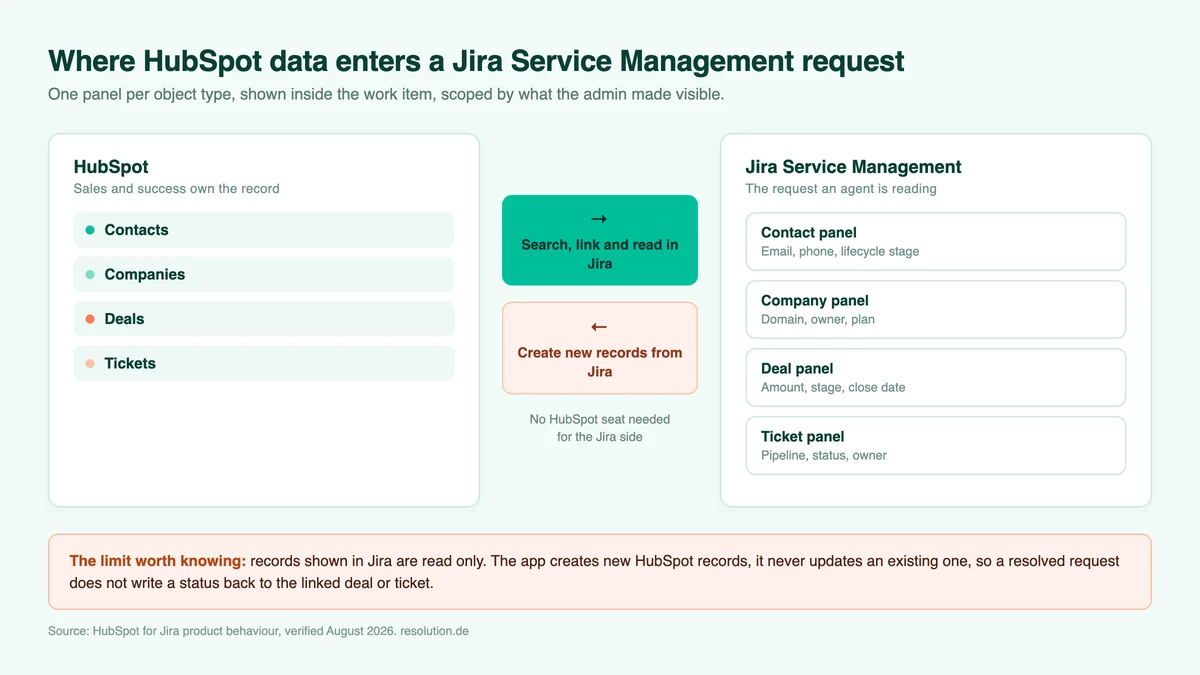
| Object linked | What an agent gains | Typical use on a service desk |
|---|---|---|
| Contact | Email, phone, lifecycle stage, owner | Know whether the reporter is a trial user, a customer or a champion |
| Company | Domain, plan, account owner | Group related requests under one account rather than per person |
| Deal | Amount, stage, close date | See that a blocker sits in front of a deal closing this quarter |
| Ticket | Pipeline, status, owner | Connect a HubSpot support conversation to the engineering work behind it |
Agents link records from the work item itself. Open the request, use View app actions under the title, choose HubSpot CRM, then Link HubSpot Object. The search dialog looks up records by first name, last name, email, phone number or associated company name, and several records can be attached at once. Each agent can then use Manage Fields and Save View to keep only the properties they care about.
The licensing detail matters more than it sounds: the people reading CRM data in Jira Service Management do not need HubSpot seats. Our guide to license-free CRM insights in Jira covers that model in more depth.
Keeping internal comments out of the customer’s view
This is the control that matters most on a service desk, and it is the one people discover too late. Comments can flow between the two systems, which is useful when a sales colleague wants to answer a customer question without a Jira licence. It is considerably less useful when an internal note about a customer’s account reaches someone who should never read it.
The admin setting is Hide Internal Jira Comments, on the View Permissions tab. It disables viewing and posting internal comments in HubSpot, either across every Jira Service Management space or for a chosen subset. Decide this before you connect a production service desk, not after.
Two more permission layers sit alongside it. Specify Groups controls which Jira user groups can connect and see HubSpot data at all, and Specify Spaces controls where work items can be created from the HubSpot side. Leaving the space list empty means no restriction, which is rarely what a regulated support team wants.
Give your agents the customer, not just the ticket
HubSpot for Jira brings contacts, companies, deals and tickets into Jira Service Management, with per-group and per-field control over who sees what. Free for up to 10 Jira users.
Automating the escalation path
Manual linking is fine for a handful of requests a day. Past that, rules do it. The app ships six actions for the Jira side, each defined once in the app and then selected as a step in a Jira automation rule, where they appear as HubSpot CRM for Jira actions.
| Action rule | What it does |
|---|---|
| Create New HubSpot Object | Creates a ticket, deal, contact or company from the triggering request |
| Find HubSpot Object and Link | Finds an existing record by its identifier and links it |
| Link or Create and Link HubSpot Object | Links if the record exists, creates it first if not, which avoids duplicates |
| Find HubSpot Object and Unlink | Removes a single association |
| Unlink All HubSpot Objects | Clears every association from the work item |
| Notify Linked HubSpot Objects | Notifies the owners of every linked record |
A practical Jira Service Management pattern: when a request is raised by a known customer domain, run Link or Create and Link against the company object so the account context attaches itself. When a request is escalated to engineering, run Notify Linked HubSpot Objects so the account owner learns about it from the system rather than from their customer.
Mapping rules must target the identifier property for each object type: email for a contact, company name for a company, deal name for a deal and ticket name for a ticket. Rules are created paused, so nothing fires until you activate them deliberately.
The reverse direction runs through HubSpot workflows: a deal stage change or a new high-value ticket can create a Jira work item in the space and work type you nominate, with properties mapped across. Our walkthrough of auto-creating work items when deals change covers that setup step by step.
What the integration will not do
Worth being blunt about, because the marketplace listing is looser with the word “sync” than the product is.
- It never updates an existing HubSpot record. Jira to HubSpot is create only. Resolving a request does not write a status back onto the linked deal or ticket, and agents cannot edit HubSpot properties from the panel.
- HubSpot data in Jira is read only. Editing happens in HubSpot, which keeps the CRM authoritative.
- The panel is not automatic. Auto-display was removed in the Forge version, so the panel is added per work item from the app actions menu.
- Notifications lag by roughly two minutes on both sides. Fine for hand-offs, not a live chat replacement.
- Cloud only. Jira and Jira Service Management Cloud. No Data Center, and Confluence needs the separate sibling app.
The honest framing is two-way integration, not two-way sync. Links and record creation flow in both directions. Field updates to existing CRM records do not.
Setup: what a Jira Service Management admin configures
- Install and connect. Jira admin settings, Apps, HubSpot CRM Configuration, then Create Connection and authorise against the correct HubSpot portal. Connecting to the wrong portal is the most common setup failure.
- Set View Permissions. Choose the groups allowed to see CRM data, the spaces in scope, and which HubSpot properties each object type exposes. Fewer fields make a better panel.
- Decide on internal comments. Apply Hide Internal Jira Comments before the first production request is linked.
- Set Write Permissions. Choose who may create records and which properties they can set on the creation form.
- Add reporting fields if you want dashboards. Four custom fields hold counts of linked companies, deals, tickets and contacts for JQL. They must be added to the work item layout and only populate after Synchronize Data has run.
The guided banner in the admin screen only disappears once every field in both permission tabs is configured, which is a reasonable proxy for “you are actually finished”. The getting started documentation walks through the connection screens in order.
Jira Service Management and HubSpot FAQ
Can Jira Service Management agents see HubSpot data without a HubSpot licence?
Yes. Agents search, view, link and create HubSpot records from inside Jira without holding a HubSpot seat. Visibility is controlled by Jira group membership and by the properties an admin exposes, so a service desk team can read customer context without being added to the CRM.
Does resolving a request update the linked HubSpot record?
No. The app creates new HubSpot records from Jira but never updates existing ones, so a status change in Jira Service Management does not write back to a linked deal or ticket. Automation can create a new record or send a notification to its owner instead.
Can customers see internal Jira comments in HubSpot?
Only if you allow it. The Hide Internal Jira Comments setting disables viewing and posting internal comments in HubSpot, across all Jira Service Management spaces or a subset you choose. Configure it before connecting a production service desk.
Which HubSpot objects can be linked to a request?
All four: contacts, companies, deals and tickets. A single work item can carry multiple records of multiple types, and each type renders as its own panel with the properties your administrator made visible.
What does HubSpot for Jira cost for a service desk team?
It is free for up to 10 Jira users. Above that it is billed by Atlassian on your Jira user tier, starting at 165 USD per year for 15 users and 550 USD per year for 50 users (list prices, August 2026). Licensing counts Jira users, not HubSpot seats.
Related reading
- What is Jira Service Management? Benefits and features
- License-free CRM insights in Jira
- A guide to GDPR-compliant CRM integration
- Auto-create work items when HubSpot deals change
Ready to give your agents the whole customer picture? Install HubSpot for Jira from the Atlassian Marketplace and connect your portal in a few minutes, or read more on the HubSpot for Jira product page.
Related: Want the automation behind this? See the two-trigger workflow that links the customer and creates a scored HubSpot ticket.
