

In this guide, we walk through the “Create New Work Item” automation rule – the only rule in the HubSpot for Jira app that flips direction, allowing a HubSpot to Jira event to automatically generate a brand-new Jira work item. By following the two-part setup process outlined below, you can ensure that critical signals like churn-risk changes or deal closures instantly reach your engineering or retention team in Jira without any manual handoff. This rule exemplifies the integration of HubSpot to Jira for seamless workflow management.
This is the final episode in our complete series covering every automation rule available in the HubSpot for Jira app, and it tackles the unique reverse-direction workflow that keeps both platforms perfectly in sync.
In our video, we walk through this rule end-to-end in under four minutes, covering what it does, a real-world use case, and the full setup process:
What the Create New Work Item Rule Does
The Create New Work Item rule is triggered by an event in HubSpot – such as an object being created or a property on an object changing – and automatically creates a new Jira work item in response. It is the mirror image of the very first rule covered in our series (Create New HubSpot Object), but operating in the opposite direction. Instead of Jira pushing data into HubSpot, HubSpot pushes data into Jira.
There are a few important things to understand about the rule’s naming. “Create new” means a brand-new Jira work item is generated every single time the rule runs. The rule does not update an existing work item or look for matches first. And “work item” is simply Jira’s term for what you might also know as an issue, task, bug, or story. Whatever your team calls it, this rule creates one from scratch each time it fires.
HubSpot to Jira Use Case: Churn-Risk Deal Triggers a Jira Retention Task
To bring this rule to life, imagine your customer success team uses HubSpot to track customer health. One of your deals has a property called “Churn Risk,” and when it gets set to “High,” that’s a signal your retention team needs to act immediately.
With the Create New Work Item rule configured, the moment that property changes to “High,” a Jira work item is automatically created for your retention team. The work item arrives pre-filled with all the relevant details from HubSpot – the deal name, the deal owner’s notes, and any other mapped fields. There is no manual handoff, no risk of the signal being missed, and your two teams stay perfectly in sync across both platforms.
This use case demonstrates the power of real-time automation between your CRM and your project tracker. Whether it’s a churn-risk flag, a deal closing, or a new object being created in HubSpot, the rule ensures Jira is updated instantly.
Why is the HubSpot to Jira Setup Different From Every Other Rule
Throughout our series, the second part of every rule’s setup took place in Jira Global Automation. This rule is the exception. Because the trigger originates in HubSpot rather than Jira, the second part of the setup happens inside HubSpot Workflows instead. This is the key difference you need to pay close attention to when configuring this automation.
The first part of the setup still takes place in the HubSpot for Jira app, just like every other rule in the series. But once the rule is defined there, you move to HubSpot to wire up the trigger and activate it.
Part 1: Setup Inside the HubSpot for Jira App
The first step is to open the HubSpot for Jira configuration and navigate to the automation screen. From there, follow these steps:
- Create a new automation rule. Click to create a new automation rule within the app.
- Name your rule descriptively. Give it a clear name such as “Create Jira Task When Deal Becomes High Churn Risk.” Hold on to this name – you will need it in Part 2.
- Select the direction. Choose that this is a HubSpot to Jira automation. This is the critical difference from every other rule in the series, so pay close attention to this step.
- Select the action. In this case, select “Create New Work Item.”
- Select the HubSpot object type. Choose the relevant object type that will trigger the rule – this could be a Contact, Company, Deal, or Ticket.
- Choose the Jira space. Select the Jira space where the new work item should be created.
- Select the work item type. Pick the appropriate type – Task, Bug, Story, or whatever fits your team’s workflow.
- Set up field mappings. This is where HubSpot data flows into Jira. For example, you can map the deal name to the work item summary, or the deal owner’s note to the description. Field mappings ensure the new Jira work item arrives with all the relevant context your team needs.
- Save the rule.
Part 2: Setup Inside HubSpot to Jira Workflows
With the rule saved in the HubSpot to Jira app, you now head over to HubSpot to create the workflow that will trigger it. Here is the process:
- Create a new workflow in HubSpot.
- Pick your trigger. This could be an object being created or a property value changing – such as the “Churn Risk” property being set to “High” in our example.
- Add an action. From the list of available actions, find “HubSpot CRM for Jira.”
- Select the rule. Choose “HubSpot CRM for Jira” as your action, then select the specific rule you built in Part 1 by the name you gave it.
- Save and enable your workflow. Once activated, HubSpot will start creating Jira work items automatically whenever your trigger fires.
That is the entire setup. Once both parts are in place, the automation runs seamlessly every time your specified trigger condition is met in HubSpot.
Important Note About the Automations Experience
This video showcases the upcoming HubSpot for Jira Automations experience, which allows you to configure your saved automation rules directly in Jira Global Automations (for Jira-triggered rules) or HubSpot Workflows (for HubSpot-triggered rules like this one) without using web request URLs. The automation logic, use cases, and overall setup process remain largely the same as in the current version of the app.
The primary difference is that the new experience simplifies configuration by eliminating the need to create and manage web request URLs. If you are using the current version of the app, some of the steps shown may look different and require web request URLs to achieve the same outcome. For guidance on setting up automations in the current version, refer to the documentation provided by the app.
The Complete Automation Rules Series
This Create New Work Item rule is the seventh and final rule in our complete series covering every automation rule available in the HubSpot for Jira app. Across the full series, we covered:
- Create New HubSpot Object – Jira triggers creation of a new HubSpot record
- Find HubSpot Object and Link – Jira finds an existing HubSpot record and links to it
- Link or Create and Link – Jira finds a match or creates a new record, then links
- Find HubSpot Object and Unlink – Jira finds a linked HubSpot record and unlinks it
- Unlink All HubSpot Objects – Jira removes all linked HubSpot records from a work item
- Notify Linked HubSpot Objects – Jira sends notifications to linked HubSpot records
- Create New Work Item – HubSpot triggers creation of a new Jira work item
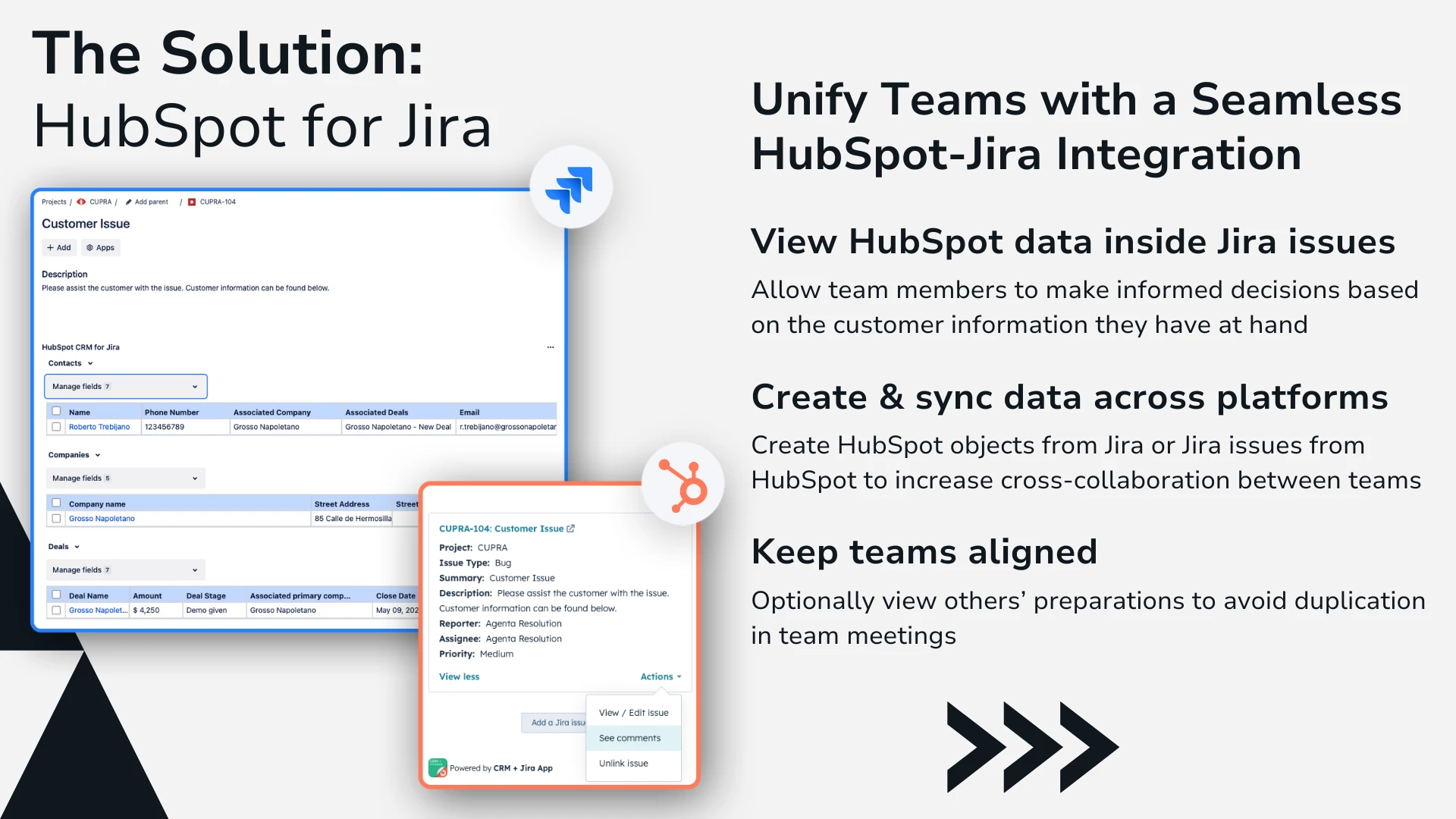
Together, these seven rules give you complete bi-directional automation between HubSpot and Jira. The app is built by resolution Reichert Network Solutions GmbH, a Platinum Atlassian Marketplace Partner, and is designed to keep your CRM and engineering tracker perfectly in sync – linking issues to HubSpot records, pushing data both ways, automating object creation, and giving every team the context they need without leaving their tool.
Related Posts



Getting Started
To install the app, visit the Atlassian Marketplace and search for HubSpot for Jira. If you need support during setup or have questions about any of the automation rules covered in this series, you can reach the team at support@resolution.de. Happy automating.
