

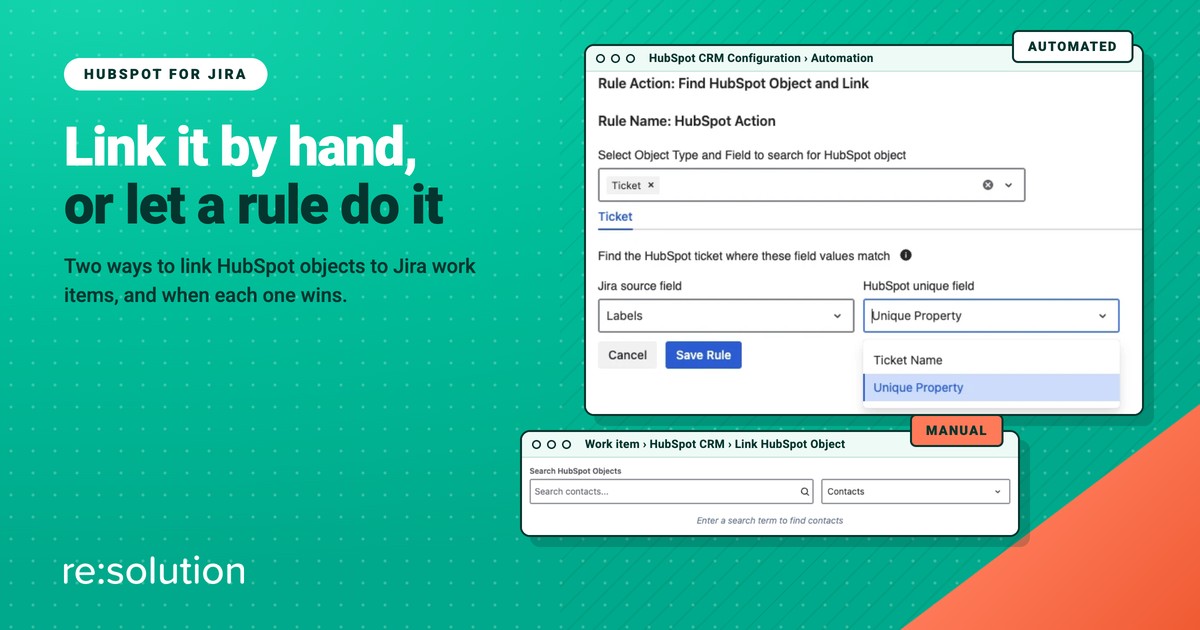
There are two ways to attach HubSpot objects to a Jira work item. A person can open the work item, search for the right contact, company, deal or ticket, and link it. Or a rule can do it the moment the work item is created, changes status, or turns up in a scheduled search. HubSpot for Jira supports both, and most teams end up needing both, just not for the same jobs.
This guide compares manual and automated linking side by side: how each one works, what each costs you in setup and accuracy, and seven real use cases with a clear recommendation for each. If you have ever wondered whether to build a rule or just ask people to click a button, this is the decision laid out.
Quick answer: Link HubSpot objects manually when a person has to judge which record belongs, such as a sales escalation or a bug hitting a few named accounts. Automate it when a value both systems share, like an email address or a unique ID, appears on a predictable event, such as every new service request.
On this page
- Two ways to link HubSpot objects to a work item
- Linking HubSpot objects manually
- Linking HubSpot objects with automation
- Manual or automated: how to decide
- Seven use cases for linking HubSpot objects
- Mistakes to avoid
- HubSpot objects linking FAQ
Two ways to link HubSpot objects to a work item
Whichever way you link, the result is the same association. The record appears in the HubSpot CRM panel on the work item, and the work item appears on the Jira card of the HubSpot record. All four HubSpot objects are supported: contacts, companies, deals and tickets. What differs is who decides which record is the right one.
| Manual linking | Automated linking | |
|---|---|---|
| Who picks the record | A person, using search | A rule, matching a shared value |
| Where it happens | The HubSpot CRM panel on a work item, or the Jira card on a HubSpot record | A Jira flow calling one of the app’s automation actions |
| Setup | None beyond permissions | An automation rule in the app plus a Jira flow |
| Handles ambiguity | Yes, a person can tell two similar records apart | No, it needs an exact match on an identifier |
| Scale | One work item at a time | Every matching work item, including history via scheduled JQL |
| Can create missing records | Yes, with Create HubSpot Object | Yes, with Link or Create and Link HubSpot Object |
| Typical failure | People forget, so links are patchy | A weak identifier links the wrong record, confidently |
Linking HubSpot objects manually
Manual linking happens in the work item itself. The panel is not shown by default, so you add it per work item:
- In the button row under the work item title, open View app actions and choose HubSpot CRM.
- Select Link HubSpot Object. A dialog called Search HubSpot Objects opens.
- Choose the object type from the dropdown (it defaults to Contacts) and type a search term. Contacts can be found by first name, last name, email, phone number or associated company name.
- Use Link to work item on a single result, or tick several and choose Link selection to work item.

Each object type then gets its own panel, so a work item linked to two contacts and a deal shows a Contacts panel and a Deals panel, with the properties your administrator made visible. The selector above them, “Choose to notify all HubSpot links, only the first link or none”, decides which record owners hear about it. It defaults to First.
The same link can be made from the other side. On a HubSpot record, the Jira card lets a HubSpot user attach an existing work item or create a new one, and its Actions menu offers Unlink issue when a link turns out to be wrong. Neither side needs a licence for the other product.
What manual linking of HubSpot objects is good at
- Judgement. Two companies called “Acme”, a contact who changed employer, a deal that is really the renewal and not the upsell. A person sees the difference; a rule does not.
- Zero setup. Once the admin has granted access in View Permissions, anyone can start linking today.
- Corrections. When automation gets one wrong, the panel is where you fix it, with Unlink selected from Work Item.
Its weakness is just as plain: it depends on people remembering. If linking is optional, it gets skipped on busy days, and your JQL reports on the four HubSpot count fields quietly undercount.
Linking HubSpot objects with automation
Automated linking takes two pieces. First, in the Jira admin sidebar, open HubSpot CRM Configuration, go to the Automation tab and choose Create Automation Rule. There you pick the action, the object type and the mapping between a Jira field and a HubSpot property. Second, in Jira automation (now branded Flows), you build a flow with a trigger and add the action, listed as HubSpot CRM for Jira - <action>. The first time, Jira asks you to Connect automation to the app, once per site.
Three of the six actions find, link or create HubSpot objects; the other three tidy up after them:
| Action | What it does | Use it when |
|---|---|---|
| Find HubSpot Object and Link | Finds an existing record by identifier and links it. Never creates | The record should already exist |
| Link or Create and Link HubSpot Object | Links a match, or creates the record and links it if none is found | New customers arrive through Jira |
| Create New HubSpot Object | Creates a new contact, company, deal or ticket from the work item | Every work item should produce a fresh record |
| Find HubSpot Object and Unlink | Removes one association | A condition stops being true |
| Unlink All HubSpot Objects | Removes every association from the work item | Resetting a work item |
| Notify Linked HubSpot Objects | Notifies the owners of all linked records | A milestone the account team should hear about |
The identifier decides whether automation works
A rule finds HubSpot objects by an identifier: Email for a contact, Company Name, Deal Name or Ticket Name for the others, or a HubSpot property marked as requiring unique values. Email is excellent, because it is genuinely unique. Names are weaker, because “Login problem” is the name of a hundred tickets. If you cannot point to a value that means the same record on both sides, automation will either miss or link the wrong one.
Two more details catch people out. Rules are created paused and must be activated in the app. And the Audit Log on the Automation tab records every run with its rule, action, trigger ID and status, which is the first place to look when nothing seems to happen. For step-by-step setup of each action, see our guides to finding and linking CRM objects automatically and to linking or creating HubSpot data in Jira.
Manual or automated: how to decide
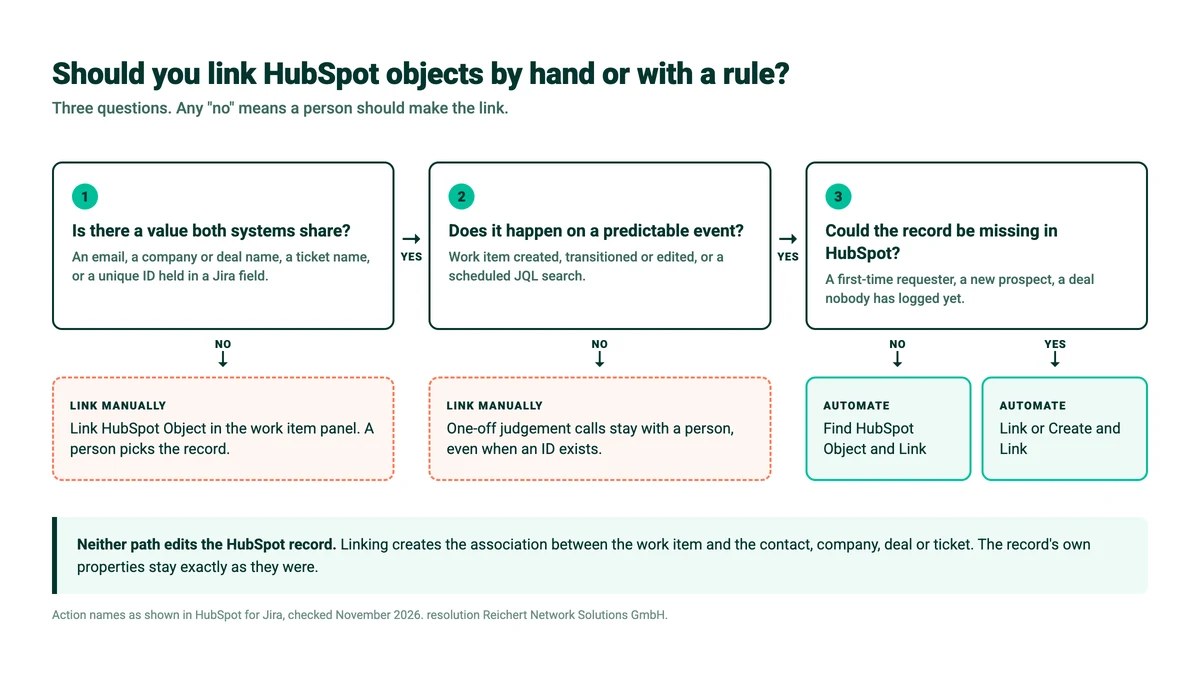
Three questions settle almost every case. Is there a value both systems share? Does the link belong to a predictable event, like a work item being created or a scheduled search? And could the record be missing from HubSpot? A “no” to either of the first two means a person should make the link.
Link by hand, by rule, or both
Contacts, companies, deals and tickets inside the Jira work item, a search dialog for the judgement calls, and six automation actions for the rest. Free for up to 10 Jira users.
Seven use cases for linking HubSpot objects
1. Sales escalates a strategic deal to engineering: manual
An account executive needs a feature to close a deal, and a product manager opens a work item for it. Which deal, and which company, is a judgement call made once. Link the deal and the company by hand from the panel, and set notifications to all links so both owners hear about it.
2. Every service request finds its contact: automated
A Jira Service Management request arrives with the requester’s email. That is a perfect identifier on a perfectly predictable event. Trigger on work item created and use Find HubSpot Object and Link against Contact Email. If first-time requesters are common, use Link or Create and Link instead so they become contacts.
3. A bug hits several named customers: manual first
Support confirms the same defect for four accounts. Nothing in the work item identifies them all, so link the four companies by hand using multi-select. The HubSpot Companies count field then lets engineering rank bugs by how many customers they touch, once Synchronize Data has run.
4. A space where every work item becomes a HubSpot ticket: automated
A customer success team wants each escalation mirrored as a HubSpot ticket for the account team. Use Create New HubSpot Object on creation and map Ticket Name and the context the account team needs. Our guide to auto-creating HubSpot objects from Jira walks through it.
5. A HubSpot user needs engineering: manual, from the HubSpot side
A support rep working a HubSpot ticket finds a defect. From the Jira card on that ticket they can create a new work item or attach an existing one, without a Jira licence, and follow its progress there. When the same hand-off should happen every time a deal reaches a stage, move it into a HubSpot workflow instead: see auto-creating work items when deals change.
6. Years of history that predate the app: automated, scheduled
Creation triggers never reach work items that already exist. A scheduled flow with a JQL search can, in batches of up to 1,000 work items, as long as the history carries a shared identifier. The full method is in our guide to linking existing HubSpot records to historic Jira work items.
7. A rule linked the wrong record: manual correction
Automation is only as good as its identifier, and the occasional mismatch is inevitable. Fix it by hand: remove the wrong record from the panel with Unlink selected from Work Item, link the right one, and tighten the identifier so it does not happen again.
Mistakes to avoid when linking HubSpot objects
- Expecting a link to change the HubSpot record. Linking associates records; it does not write work item status or fields back into an existing contact, company, deal or ticket. HubSpot objects shown in Jira are read-only.
- Using Link or Create where Find and Link belongs. Every failed match becomes a new record, and duplicates pile up quietly.
- Matching on names. Deal and ticket names are rarely unique. Prefer email or a unique-value property.
- Forgetting to activate the rule. A paused rule is the most common reason “automation does nothing”.
- Reporting before syncing. The four count fields only populate after Synchronize Data has run, and must be added to the work item layout first.
The pattern that holds up best is simple: automate the predictable majority, keep the panel for exceptions, and check the Audit Log now and then. Admins can find installation and permission setup in the HubSpot for Jira documentation, and HubSpot’s own guide to associating records explains how associations work on the CRM side.
HubSpot objects linking FAQ
Can I link multiple HubSpot objects to one Jira work item?
Yes. A single work item can carry several contacts, companies, deals and tickets at once, linked by hand with multi-select or by more than one automation action. Each object type appears in its own panel on the work item.
Does linking a HubSpot object update the record in HubSpot?
No. Linking creates an association that both sides can see, but the app never edits an existing HubSpot record. Contacts, companies, deals and tickets keep their own properties, and are read-only when viewed from Jira.
Do Jira users need a HubSpot licence to link records?
No. Jira users can search and link HubSpot objects without a HubSpot seat, limited to the groups, spaces and properties the admin allows. HubSpot users can likewise attach Jira work items from a HubSpot record without a Jira licence.
Why did my automation rule not link anything?
Usually the rule is still paused, or the identifier did not match. Rules are created paused and must be activated in the app, and the match must be exact on email, name or a unique-value property. The Audit Log on the Automation tab shows each run and its status.
When should I use Link or Create and Link instead of Find and Link?
Use Link or Create and Link when records may not exist in HubSpot yet, such as first-time requesters. Use Find HubSpot Object and Link when they always should exist, because it never creates anything and so can never produce a duplicate.
Related reading
- Find and link HubSpot CRM objects in Jira automatically
- Link or create HubSpot data in Jira
- Link existing HubSpot records to historic Jira work items
- Jira Service Management and HubSpot CRM
Ready to stop copying customer names into Jira descriptions? Try HubSpot for Jira on the Atlassian Marketplace, or read more on the HubSpot for Jira product page.
