

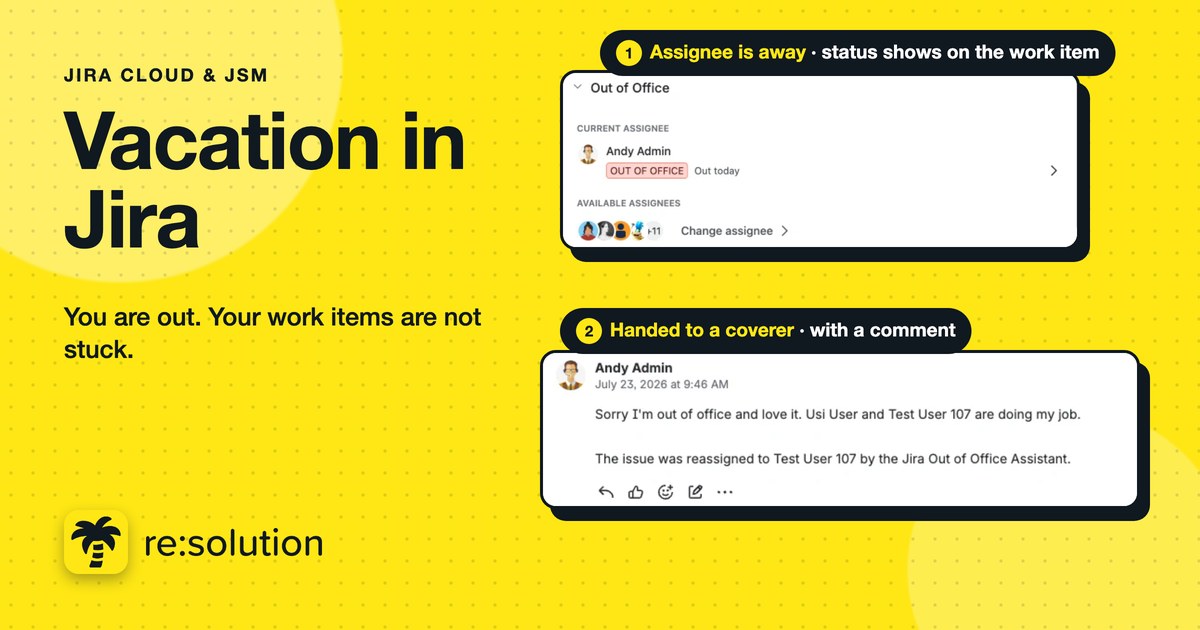
You booked the flights, set your email auto-reply and handed over the big project. Then, on day two of your vacation, a teammate assigns you a bug, a customer request lands in your queue, and an approval waits for your click. Jira has no idea you are away. That is the real problem with vacation in Jira: nothing stops, so things quietly pile up on you.
This post walks through what happens to each kind of work item during your vacation in Jira when you use Out of Office Assistant for Jira Cloud: new assignments, the backlog you already hold, approvals, mentions and customer requests, plus what comes back to you on your return and what does not.
Quick answer
Jira does nothing on its own when you go on vacation. With Out of Office Assistant, an active rule hands new work items to your coverers, passes JSM approvals to an approver coverer, and tags your @-mentions. Work you already hold stays put unless you run Bulk Assign. Afterwards, you reclaim items from the Reassignment Log.
In this post
- What happens to your work items on vacation in Jira by default?
- How the app handles each work item during your vacation in Jira
- Coming back from vacation in Jira
- Limits to know before your next vacation in Jira
- FAQ
What happens to your work items on vacation in Jira by default?
Nothing changes. Jira Cloud has no vacation status, so work keeps being assigned to you, approvals keep waiting for you, and nobody sees that you are gone unless they read your calendar. Atlassian’s knowledge base confirms there is “no direct way” to reassign work when an agent is on vacation, and suggests a workaround made of four Jira Automation rules that store leave dates in user properties.
Here is how each type of work item fares during a vacation in Jira, with and without the app:
| Work item | Jira on its own | With Out of Office Assistant |
|---|---|---|
| New work item assigned to you | Stays with you | Handed to a coverer, with a comment |
| Work items you already hold | Stay with you | Stay with you, unless you run Bulk Assign |
| Work items outside the rule’s scope | Stay with you | Stay with you |
| JSM approval waiting on you | Waits | Passed to an approver coverer, returned automatically |
| @-mention in a comment | Notification only | Optional “out of office” tag beside your name |
| Customer request | Customer is not told | Optional customer-visible message and portal status |
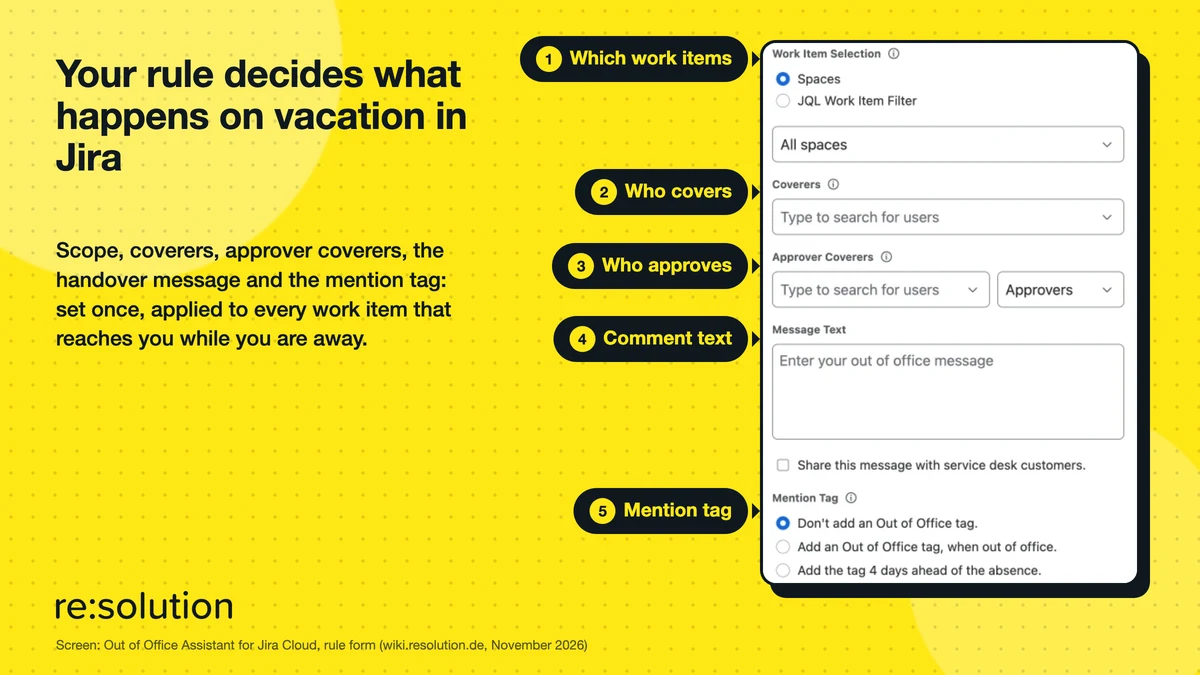
The rule form in Out of Office Assistant. These five settings decide what happens to each work item while you are away.
How the app handles each work item during your vacation in Jira
Everything below assumes you have an active Out of Office rule: your vacation dates, the spaces or JQL filter it covers, and at least one coverer. If you have not set one up yet, follow how to set up Out of Office in Jira first, then come back.
New work items assigned to you
While the rule runs, any work item in its scope that is assigned to you, or created with you as assignee, goes straight to a coverer. With several coverers, it goes to whoever has received the fewest work items from this rule so far, so nobody gets buried. If a coverer cannot take it (for example, no access to that space), the app tries the next one.
Each handover gets one comment that combines your Message Text with your name, the coverer’s name and your absence dates, so whoever opens the work item knows why it moved. Prefer a shared queue? Choose Unassigned as the coverer and the work items are left with no assignee for the absence.
Work items you already hold
This is what surprises people most about vacation in Jira. A rule only acts on work items as they reach you, so everything already assigned to you when your vacation starts stays with you. To hand over that backlog, open the rule’s Actions menu and choose Bulk assign. You can reassign the open work items to your coverers, or tick Add coverers as watcher to keep ownership and simply let someone keep an eye on them.
Work items outside the rule’s scope
If your rule covers only one space, or a JQL filter such as high-priority bugs, everything else stays assigned to you. Your out-of-office status, however, shows everywhere, so colleagues still see you are away. Use several rules with different coverers if each space needs its own stand-in.
When your coverer is also on vacation in Jira
Summer and year-end holidays mean coverers disappear too. If your coverer has their own active rule, the work item moves along to their coverer, up to five steps along the chain. If the chain ends at someone with no coverer, or loops back, the work item stays with you and appears under Failures in the Reassignment Log. Nothing vanishes silently; check that tab when you are back.
Approvals in Jira Service Management
In Jira Service Management (JSM), an approval waiting on you can block a whole request. Add an Approver Coverer to your rule and those approvals pass to that colleague for the length of your vacation in Jira. You both need agent access to the service space. When the rule ends, the approvals return to you automatically. See speeding up approvals in JSM for the full workflow.
@-mentions and customer requests
When someone @-mentions you in a comment, the app can add a coloured out-of-office tag beside your name, such as “Out today”. It is a tag, not an auto-reply comment. Set Mention Tag on the rule to show it during the absence, or from four days before it starts. On JSM requests, tick Share this message with service desk customers to make the handover comment visible to the customer, and ask an admin to switch on agent availability in the customer portal.
Take a vacation. Your work items will not wait for you.
Out of Office Assistant hands work items and approvals to your coverers while you are away and gives them back when you return. For Jira Cloud and Jira Service Management.
Coming back from vacation in Jira: what returns and what does not
After a vacation in Jira, approvals come back on their own. Work items do not: they stay with your coverers until you take them back, which is deliberate, because a coverer may be halfway through a fix.
Reclaim your work items
On My Rules, open the rule’s Reassignments log, tick the work items you want back and reclaim them. Each one returns to you; anything left unticked stays with the coverer. The log shows a “Last edited” date, so you can see which items moved on while you were away. Back early? Pause the rule first, because reclaiming only works once the rule has expired or been paused.
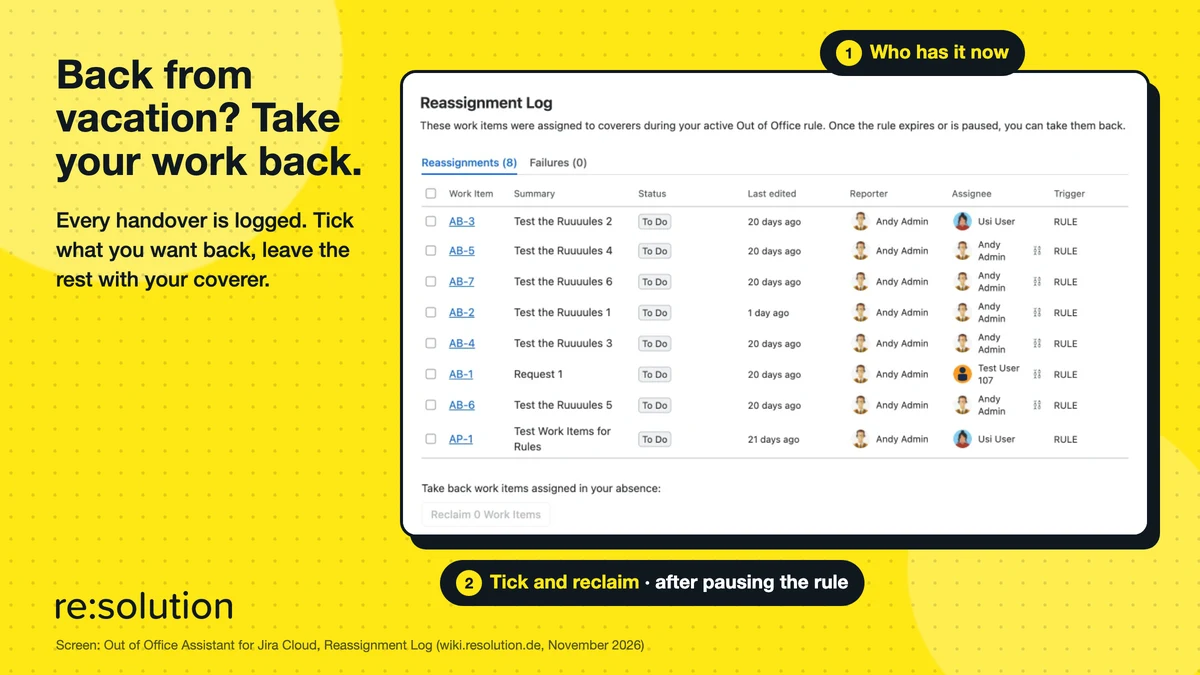
The Reassignment Log: every work item the rule handed over, and who holds it now.
How long you have to reclaim after vacation in Jira
A rule stays in your list for 30 days after it ends. From 30 to 180 days, only rules that reassigned work items are kept, so those items stay reclaimable. After 180 days the rule and its log are deleted, and the work can no longer be reclaimed in the app.
Limits to know before your next vacation in Jira
- Jira Cloud only. There is no Data Center version of Out of Office Assistant.
- Existing work needs Bulk Assign. Rules handle new assignments, not your backlog.
- Glance-only rules reassign nothing. Show Out of Office status in work item glance only shows your status and keeps the mention tag, but hands nothing over.
- Mention tags appear in work item comments only, and may need a page reload to show.
- Jira Automation can undo a handover if an automation rule assigns work back to you. The docs explain how to make automation respect absences.
FAQ
Does Jira have a vacation mode?
No. Jira Cloud has no vacation or out-of-office status. Work keeps being assigned to you while you are away unless you build Jira Automation rules yourself or use an app such as Out of Office Assistant.
What happens to my Jira work items when I go on vacation?
With an active Out of Office rule, new work items in the rule’s scope go to your coverers with a handover comment. Work items you already hold stay with you unless you run Bulk Assign before you leave.
What if my coverer is on vacation too?
The work item follows your coverer’s own coverers, up to five steps along the chain. If no one is available, it stays with you and is listed under Failures in the Reassignment Log.
Who approves my JSM requests while I am on vacation?
Your approver coverer. Approvals waiting on you pass to that colleague while the rule is active and return to you automatically when it ends. Both of you need agent access to the service space.
Do my work items come back automatically after vacation?
Approvals do; work items do not. Open the rule’s Reassignment Log, select the work items you want back and reclaim them. Pause the rule first if you return before its end date.
Related reading
- Out of Office in Jira: how to hand over work before you leave
- How to reassign Jira issues blocked by vacations
- How to auto assign Jira issues and skip people on vacation
- Vacation coverage plan template
Planning your next vacation in Jira? Start a free trial of Out of Office Assistant before you go, or read more on the Out of Office Assistant product page.
