

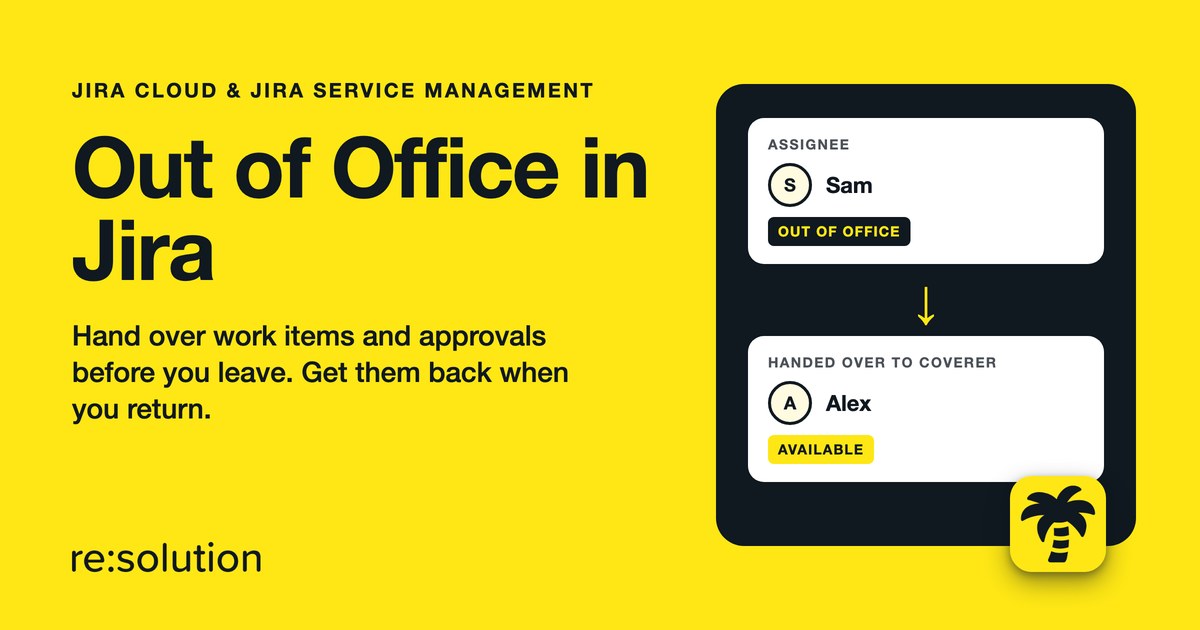
Your inbox has had an auto-reply for years. Jira has never had one. When someone leaves for two weeks, their work items keep landing on them, approvals wait in silence, and customers watch an SLA clock that nobody is minding. Setting up Out of Office in Jira fixes that, but only if the handover actually happens, not just the status.
This guide covers what Jira can and cannot do on its own, how to set up Out of Office in Jira in five steps with Out of Office Assistant for Jira Cloud, and the limits worth knowing before you rely on it.
Quick answer
Jira Cloud has no built-in out-of-office status. To set up Out of Office in Jira, use an app such as Out of Office Assistant: create a rule with your dates, choose which work items it covers, name coverers and approver coverers, add a message, then use Bulk Assign to hand over work you already hold.
In this guide
- Does Jira have an Out of Office feature?
- How to set up Out of Office in Jira in 5 steps
- How your team sees who is out of office
- Sync Out of Office in Jira from Outlook, Google, Slack or Tempo
- Coming back: reclaim your work
- Limitations of Out of Office in Jira
- FAQ
Does Jira have an Out of Office feature?
No. Jira Cloud has no native out-of-office status, no auto-reply, and no setting that redirects your work while you are away. Atlassian’s own knowledge base says plainly that “there is no direct way to reassign the issues when an agent is on vacation”, and offers a workaround built from four Jira Automation rules that store leave dates in user properties.
That workaround is real and free, but it is plumbing. Someone has to maintain the rules, the dates live in custom fields, and the same article warns that the “A user in a defined list” assign action might still assign issues to people who are on vacation. Here is how the two approaches to Out of Office in Jira compare:
| Need | Native Jira (Automation workaround) | Out of Office Assistant |
|---|---|---|
| Absence status on work items | No | Yes, in the work item glance and on @-mentions |
| Reassign new work to a coverer | Yes, with 4 rules you build and maintain | Yes, per rule, with one or several coverers |
| Hand over work you already hold | Extra rule needed | Bulk Assign, one dialog |
| Delegate JSM approvals | No | Yes, with approver coverers |
| Take work back on return | Manual | Reclaim from the Reassignment Log |
| Dates from Outlook, Google, Slack or Tempo | No | Yes |
| Cost | Included in Jira | Paid app, free trial |
How to set up Out of Office in Jira in 5 steps
Any licensed Jira user can create, edit, pause and delete their own rules once a Jira admin has installed the app. Admins, and Out of Office Admins granted under Administration > Permissions, can also manage rules for other people.
Step 1: Create a rule with your dates
Open Apps > Out of Office Assistant, select the My Rules tab, and click Add rule for myself. In the Schedule your Out of Office Rule form, set the Start Date and, if you know it, the End Date (Optional). Leave the end date empty for an open-ended absence, such as sick leave, and pause the rule when you are back.
Leaving at lunchtime? Change Start Time or End Time from “All day”. For part-time schedules, tick Make the rule recurring and pick the weekdays.
Step 2: Choose which work items the rule covers
Under Work Item Selection, keep Spaces (all spaces by default) or switch to JQL Work Item Filter for finer control, for example only high-priority bugs in one space. Each person can have up to 10 rules that use a JQL filter, and you can run several rules at once, each with its own coverer.
Step 3: Pick your coverers
Add one or more people in Coverers. With several coverers, each new work item goes to whoever has received the fewest from this rule so far, so the load spreads evenly. Choose Unassigned instead when a team triages from a shared queue.
If a coverer is also out of office, the app follows their own coverers, up to five steps along the chain. If the chain dead-ends, the work item stays with you and is listed under Failures in the Reassignment Log, so nothing disappears quietly.
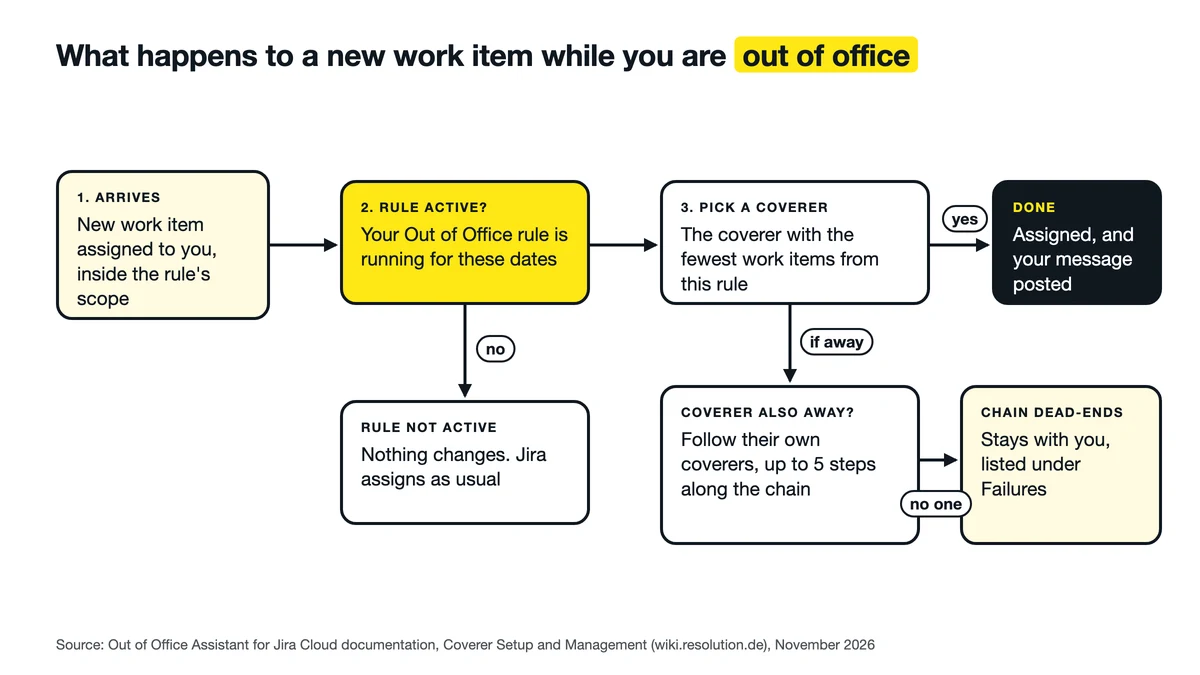
How Out of Office in Jira routes a new work item while you are away.
Step 4: Add approver coverers and a message (Jira Service Management)
In Jira Service Management (JSM), approvals are the silent blocker. Name an Approver Coverer and approvals waiting on you pass to that colleague, then return to you automatically when the rule ends. You and your approver coverer both need agent access to the service space. For the full approval workflow, see speeding up approvals in JSM.
Then write the Message Text the app posts as a comment when it hands over a work item. Tick Share this message with service desk customers if customers should see it in the portal, or leave it unticked to keep it internal.
Step 5: Hand over the work you already hold with Bulk Assign
This is the step most people miss when they set up Out of Office in Jira. A rule acts on work items as they reach you; items already assigned to you stay with you. In the rule’s Actions column, choose Bulk assign, keep Assign work items to coverers selected (or pick Add coverers as watcher), untick anything you want to keep, and click Assign to Coverer. It only touches open work items in the rule’s scope.
Stop work from waiting for people on holiday
Out of Office Assistant hands over work items and approvals automatically while you are away, and gives them back when you return. Runs on Jira Cloud and Jira Service Management.
How your team sees who is out of office in Jira
Handover is half the job. The other half is making sure nobody assigns new work to an empty chair. Out of Office in Jira shows up in four places:
- Team Availability tab: the app’s start page lists people as AVAILABLE, LEAVING SOON or OUT OF OFFICE, with their active rules and coverers, across all spaces.
- Work item glance: an Out of Office section in the work item’s Details column shows the assignee’s availability and lets you reassign to an available colleague.
- Mention tags: @-mention an absent person and a tag appears beside their name, either while they are out or from four days before they leave.
- Customer portal: in JSM, admins can let customers see on their own request whether the assigned agent is away.
Only need the status, not the reassignment? Tick Show Out of Office status in work item glance only when creating the rule. For planning ahead, the same absence data feeds capacity planning dashboards in Jira.
Sync Out of Office in Jira from Outlook, Google, Slack or Tempo
Nobody wants to enter the same holiday twice. Each integration turns an absence you already record elsewhere into an Out of Office in Jira rule. Connect it once under My Integrations:
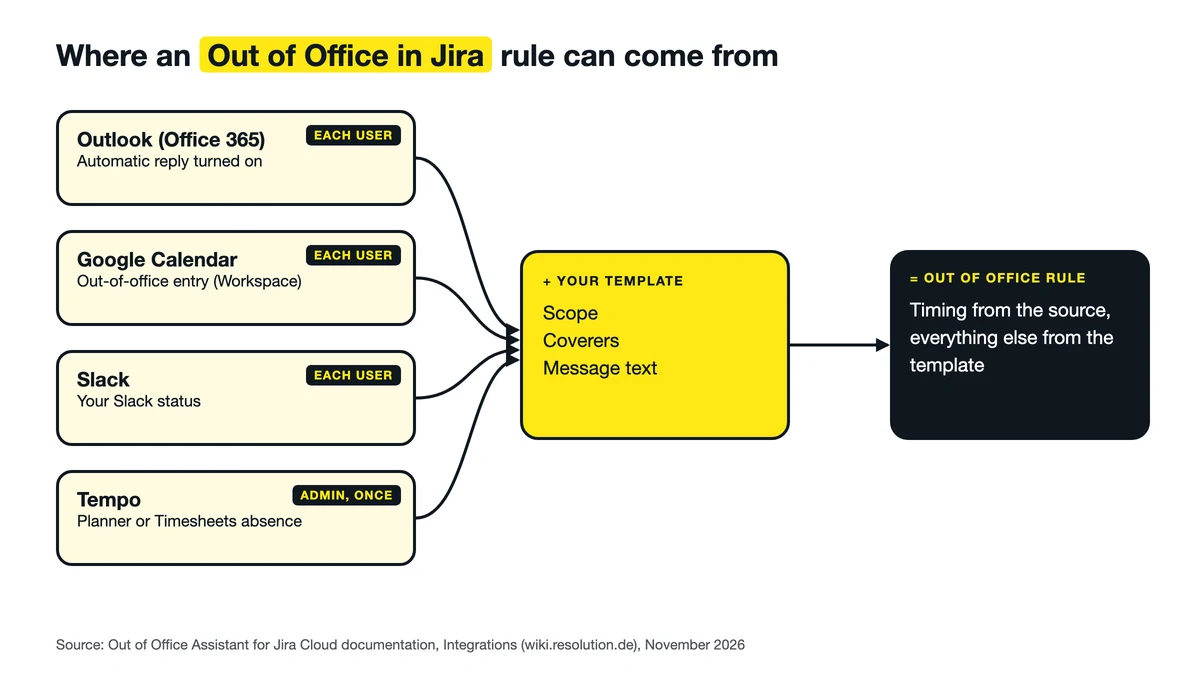
Four ways to start an Out of Office in Jira rule without typing your dates twice.
| Source | What creates the rule | Who connects it |
|---|---|---|
| Microsoft Outlook (Office 365) | Your Outlook automatic reply | Each user, or an admin for whole email domains |
| Google Calendar | An out-of-office calendar entry (Google Workspace accounts, not personal Gmail) | Each user |
| Slack | Your Slack status | Each user |
| Tempo Planner and Timesheets | Tempo absences | An admin, once, for everyone |
One detail matters for Outlook: only the dates come from your Outlook automatic reply. Scope, coverers and message come from the template you connect, and the integration is read-only, so it never changes your mail. Changes are picked up when the app next checks (it rereads Outlook if its copy is more than five minutes old), or immediately when you click Reload. The Tempo Planner handover guide walks through the admin setup with three worked examples.
Coming back: reclaim your work
Every move an Out of Office in Jira rule makes is recorded. On My Rules, click the count in the rule’s Reassignments column (for example “8 of 8 passed”) to open the Reassignment Log, tick the work items you want back, and click Reclaim. Reclaiming applies once the rule has expired or been paused, so pause it first if you are back early.
Approvals need no action: they return to you automatically when the rule ends. Do not leave it too long, though. Rules and their logs are deleted 180 days after the rule ends, and after that the work can no longer be reclaimed in the app.
Limitations of Out of Office in Jira to know before you rely on it
- Jira Cloud only. There is no Data Center version of Out of Office Assistant.
- Existing work needs Bulk Assign. Rules handle new work items as they arrive, not your backlog.
- Your status is global. You show as out of office everywhere, even in spaces outside the rule’s scope.
- Jira Automation can fight back. An automation rule that assigns work to you can undo a handover. The docs describe how to make automation respect absences.
- Admin setup comes first for the customer portal display, Tempo, and domain-wide Outlook.
FAQ
Can you set Out of Office in Jira without an app?
Not directly. Jira Cloud has no out-of-office setting. Atlassian documents a workaround using four Jira Automation rules and user properties, which reassigns work but shows no absence status and needs ongoing maintenance.
How do I reassign Jira issues when someone is on vacation?
Create an Out of Office rule with coverers for the vacation dates, then run Bulk Assign to hand over the open work items the person already holds. New work items are reassigned automatically while the rule is active.
Does Out of Office in Jira work with Outlook automatic replies?
Yes. Connect the Office 365 (Outlook) integration and turning on your automatic reply creates a rule. Only the dates come from Outlook; scope, coverers and message come from the template you connect.
Can someone else approve my Jira Service Management requests while I am away?
Yes. Add an approver coverer to your rule. Approvals waiting on you pass to that colleague and return to you automatically when the rule ends. Both of you need agent access to the service space.
What happens to my work items when I come back?
They stay with your coverers until you reclaim them. Open the Reassignment Log from the rule, select the work items you want back, and reclaim them. Pause the rule first if you return early.
Related reading
- How to reassign Jira issues blocked by vacations
- How to auto assign Jira issues and skip people on vacation
- How to connect Outlook automatic replies with Jira
- How to master approval delegation in Jira Service Management
Going away soon? Set up Out of Office in Jira before you pack: start your free trial of Out of Office Assistant, or browse the Out of Office Assistant product page first.
